> ## Documentation Index
> Fetch the complete documentation index at: https://docs.gomaestro.org/llms.txt
> Use this file to discover all available pages before exploring further.
# Submit Bitcoin transaction
> Complete guide to creating, signing, and broadcasting Bitcoin transactions using bitcoin-cli and Maestro APIs on Testnet4.
**Creating a Bitcoin Transaction Using bitcoin-cli and Maestro APIs**
This guide covers the steps to create a Bitcoin transaction using bitcoin-cli on Testnet4 Blockchain and Maestro APIs. We will generate a testnet4 Bitcoin address, transfer funds to our address, create a raw transaction, calculate fees using Maestro API, sign the transaction, and broadcast it to the Bitcoin network via Maestro API.
## Prerequisites
* A running Bitcoin Core node with bitcoin-cli access. See Setup Bitcoin Node guide in order to run a testnet4 bitcoin node and install bitcoin-cli.
* Maestro API credentials for retrieving transaction fees and broadcasting transactions. See Getting Started guide in order to create a free Maestro Account.
## Submit a Bitcoin Transaction
To receive Bitcoin, First, you will need to create a new wallet and then generate a new address using bitcoin-cli. Open CMD on Windows or Terminal on Linux and navigate to the bitcoin daemon folder and run the commands below:
```bash theme={null}
# Let's create a new Bitcoin Wallet
bitcoin-cli testnet4 createwallet "MaestroWallet1"
# Now you can create a new address that will be associated with your wallet
bitcoin-cli testnet4 getnewaddress "Address1"
mwB5SqzYMFQj1BQxPTTL8W2brMr6ehFEEM
```
The first command returns a newly generated Bitcoin wallet.
The second command creates a new address in that wallet which you can use as the recipient or sender in transactions.
To create a Bitcoin transaction, our wallet must have funds stored as UTXOs (Unspent Transaction Outputs).
We'll receive Test Bitcoin (tBTC) from the Testnet4 Faucet to Address1. This test bitcoin (not real BTC) will be used as UTXO to send funds to another address on the Testnet4 blockchain.
Go to CoinFaucet website and enter your bitcoin testnet4 address in order to receive test bitcoin.
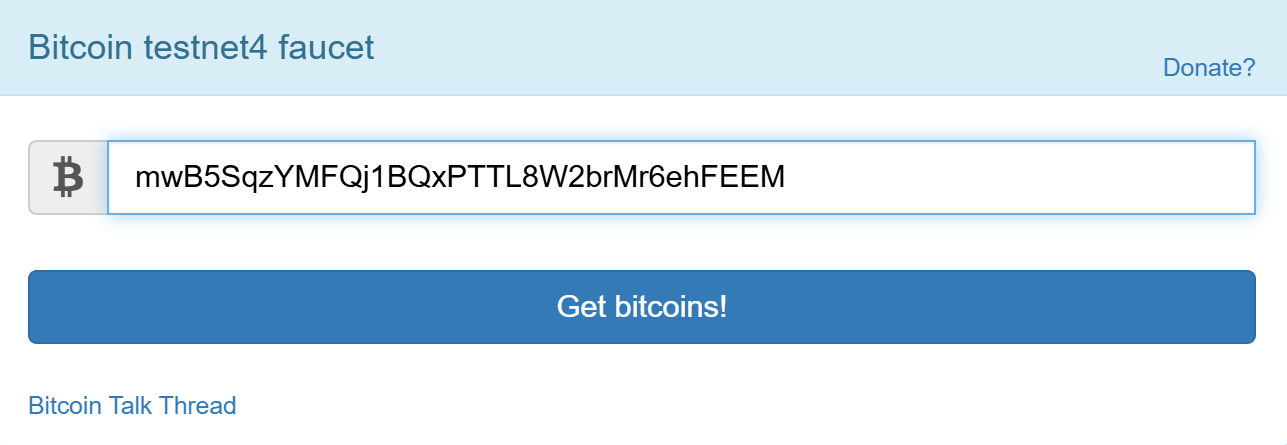
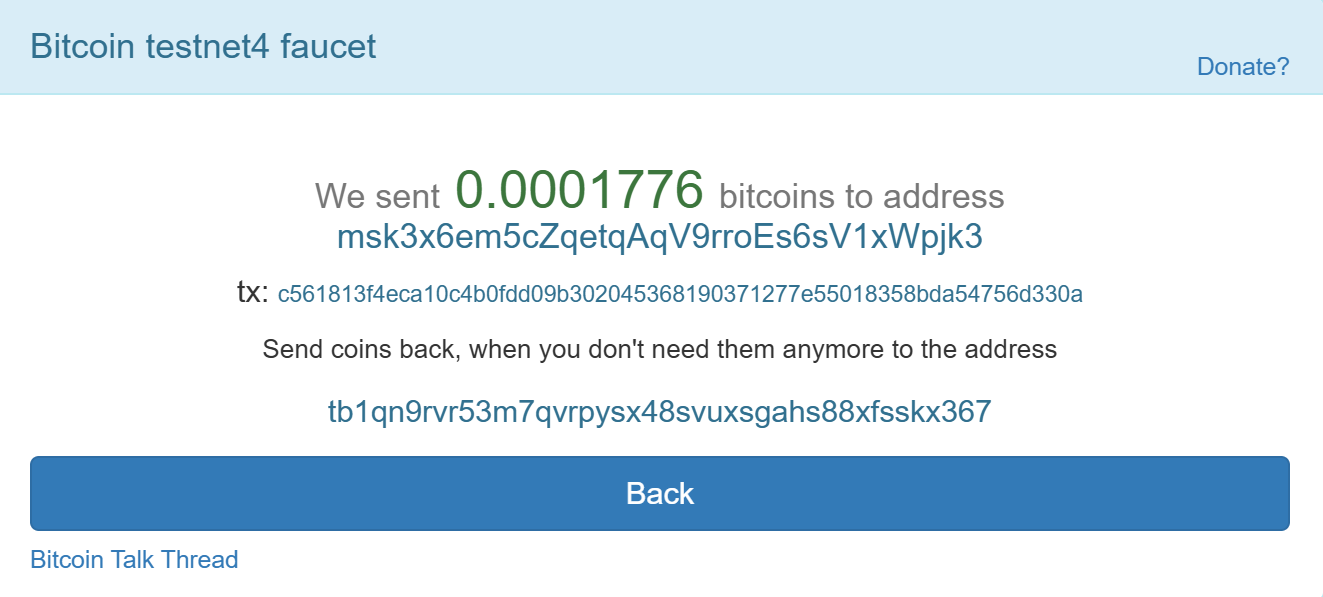 The Coin Faucet will send Test Bitcoin (tBTC) to our Address1 testnet4 wallet, generating a transaction (tx) that will be recorded on the Bitcoin Testnet4 blockchain.
`abe3318569c84d229dd8aea53ca8e7c9dfe725d2f866ee60a8926cbfba4ddc0c`
**Maestro Bitcoin Explorer**
You can lookup the transaction by visiting explorer.gomaestro.org and entering the transaction id (txid).
[https://explorer.gomaestro.org/bitcoin/testnet/transactions/abe3318569c84d229dd8aea53ca8e7c9dfe725d2f866ee60a8926cbfba4ddc0c](https://explorer.gomaestro.org/bitcoin/testnet/transactions/abe3318569c84d229dd8aea53ca8e7c9dfe725d2f866ee60a8926cbfba4ddc0c)
The Coin Faucet will send Test Bitcoin (tBTC) to our Address1 testnet4 wallet, generating a transaction (tx) that will be recorded on the Bitcoin Testnet4 blockchain.
`abe3318569c84d229dd8aea53ca8e7c9dfe725d2f866ee60a8926cbfba4ddc0c`
**Maestro Bitcoin Explorer**
You can lookup the transaction by visiting explorer.gomaestro.org and entering the transaction id (txid).
[https://explorer.gomaestro.org/bitcoin/testnet/transactions/abe3318569c84d229dd8aea53ca8e7c9dfe725d2f866ee60a8926cbfba4ddc0c](https://explorer.gomaestro.org/bitcoin/testnet/transactions/abe3318569c84d229dd8aea53ca8e7c9dfe725d2f866ee60a8926cbfba4ddc0c)
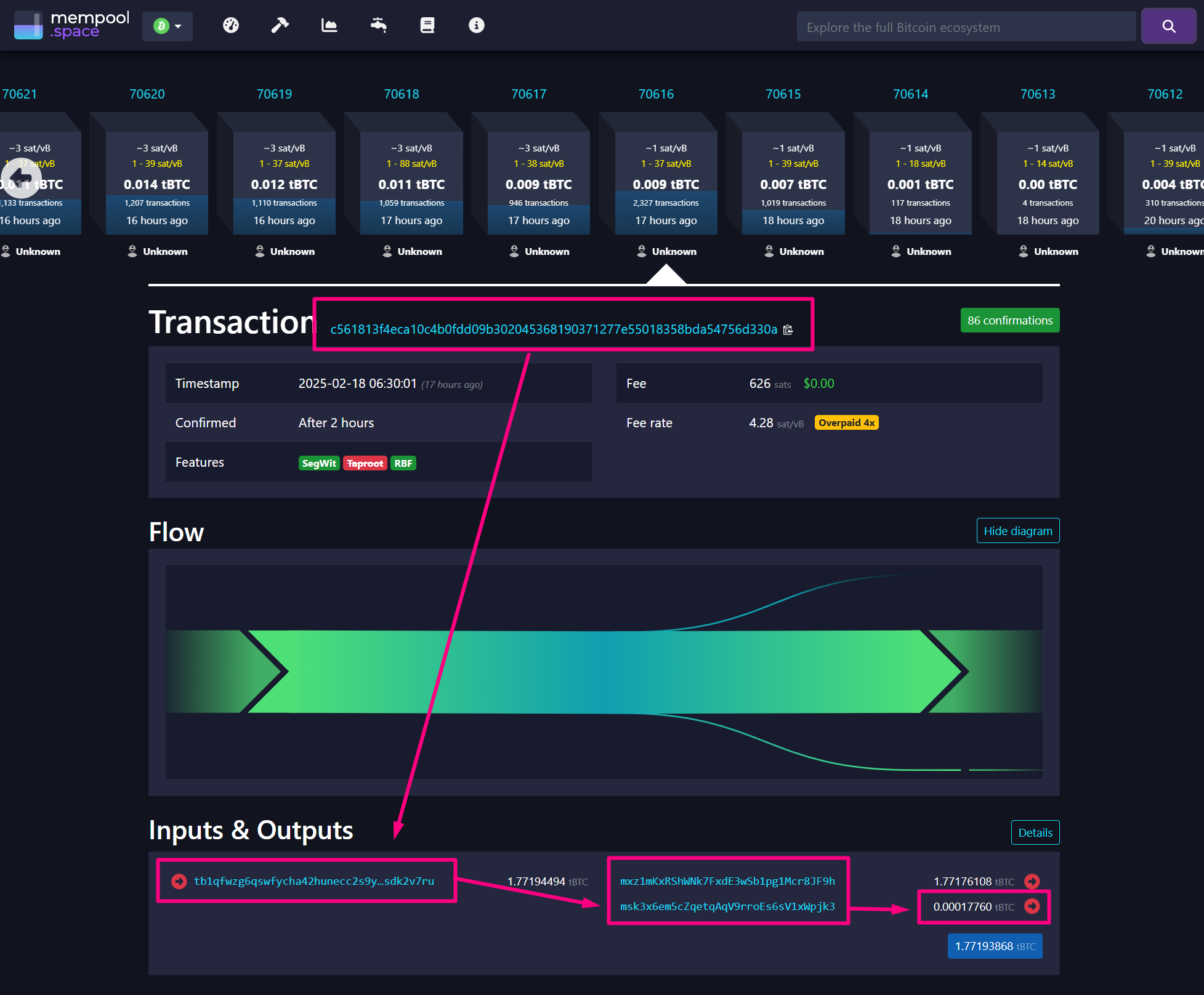
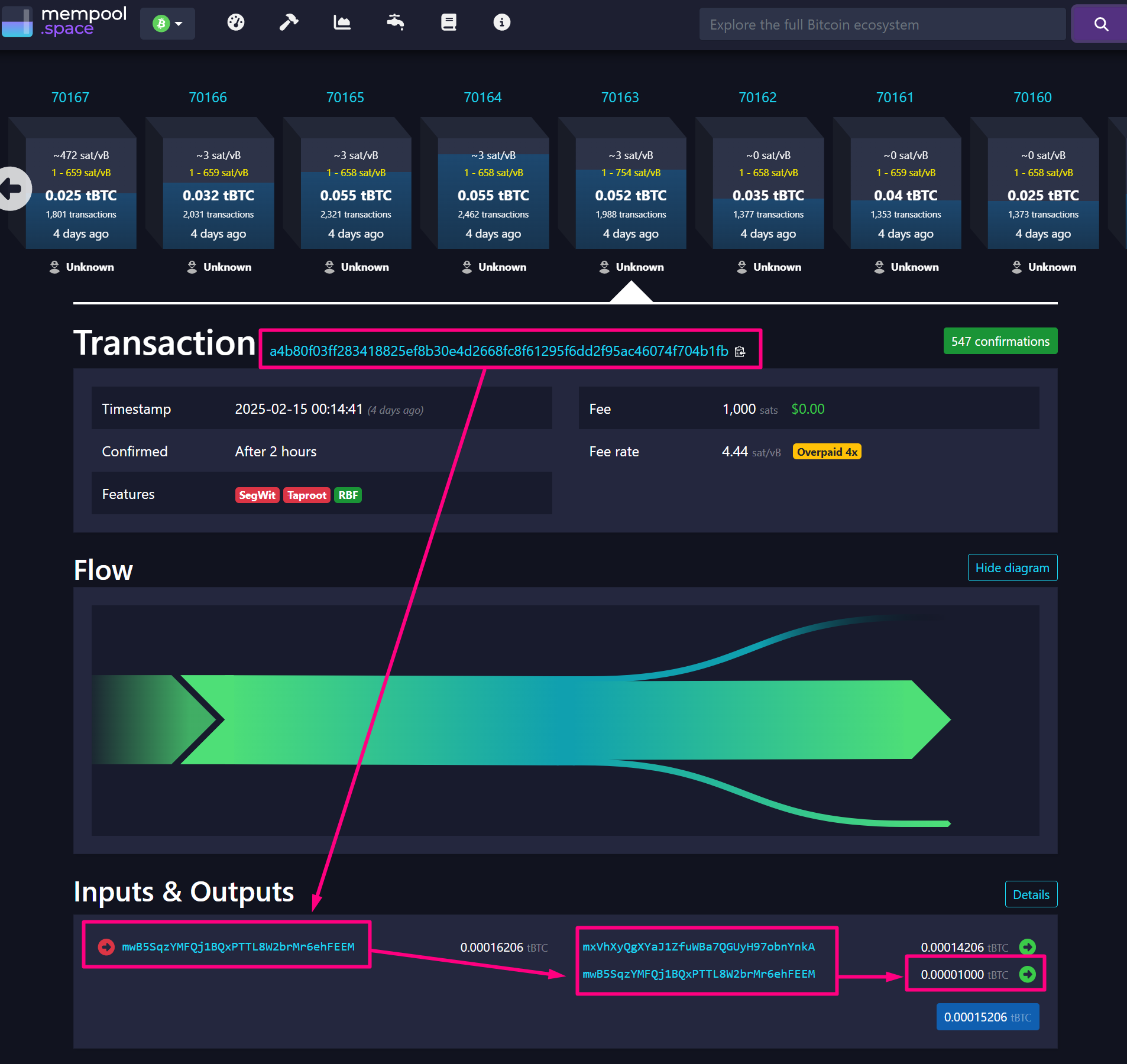
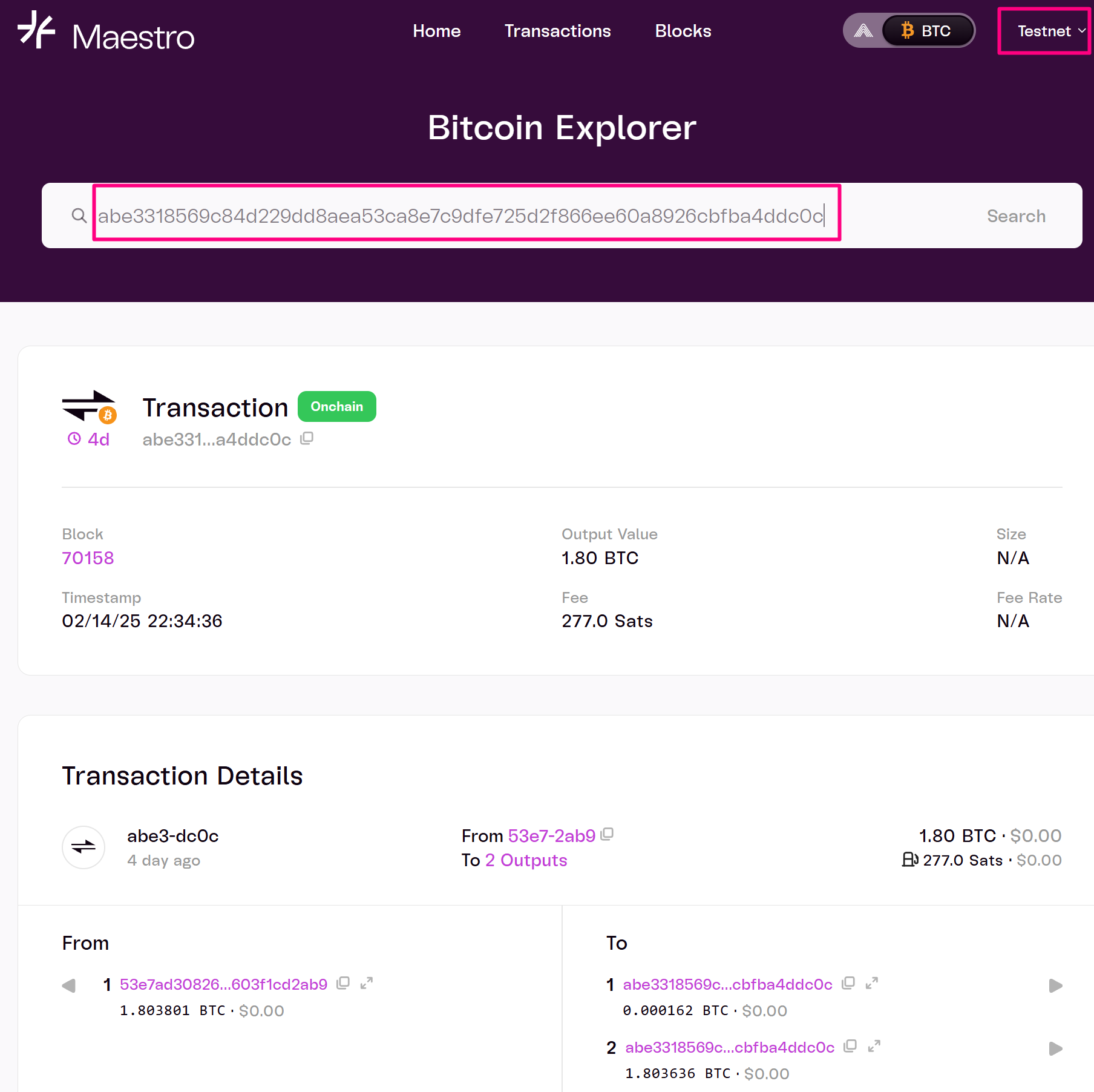 In Step 2, we received 0.0001776 tBTC. The Bitcoin Faucet generated a transaction with two UTXO outputs. One of these UTXOs was assigned to our address as an output of that transaction, making it available as an input for future transactions. Refer to the screenshot below.
 In order to get all Unspent Transaction Outputs (UTXOs) in your address use Maestro's API.
```bash theme={null}
curl --location 'https://xbt-testnet.gomaestro-api.org/v0/addresses/mwB5SqzYMFQj1BQxPTTL8W2brMr6ehFEEM/utxos?api-key={YOUR_MAESTRO_API_KEY}'
```
Below is the output for the Maestro API request UTXOs by Address
In order to get all Unspent Transaction Outputs (UTXOs) in your address use Maestro's API.
```bash theme={null}
curl --location 'https://xbt-testnet.gomaestro-api.org/v0/addresses/mwB5SqzYMFQj1BQxPTTL8W2brMr6ehFEEM/utxos?api-key={YOUR_MAESTRO_API_KEY}'
```
Below is the output for the Maestro API request UTXOs by Address
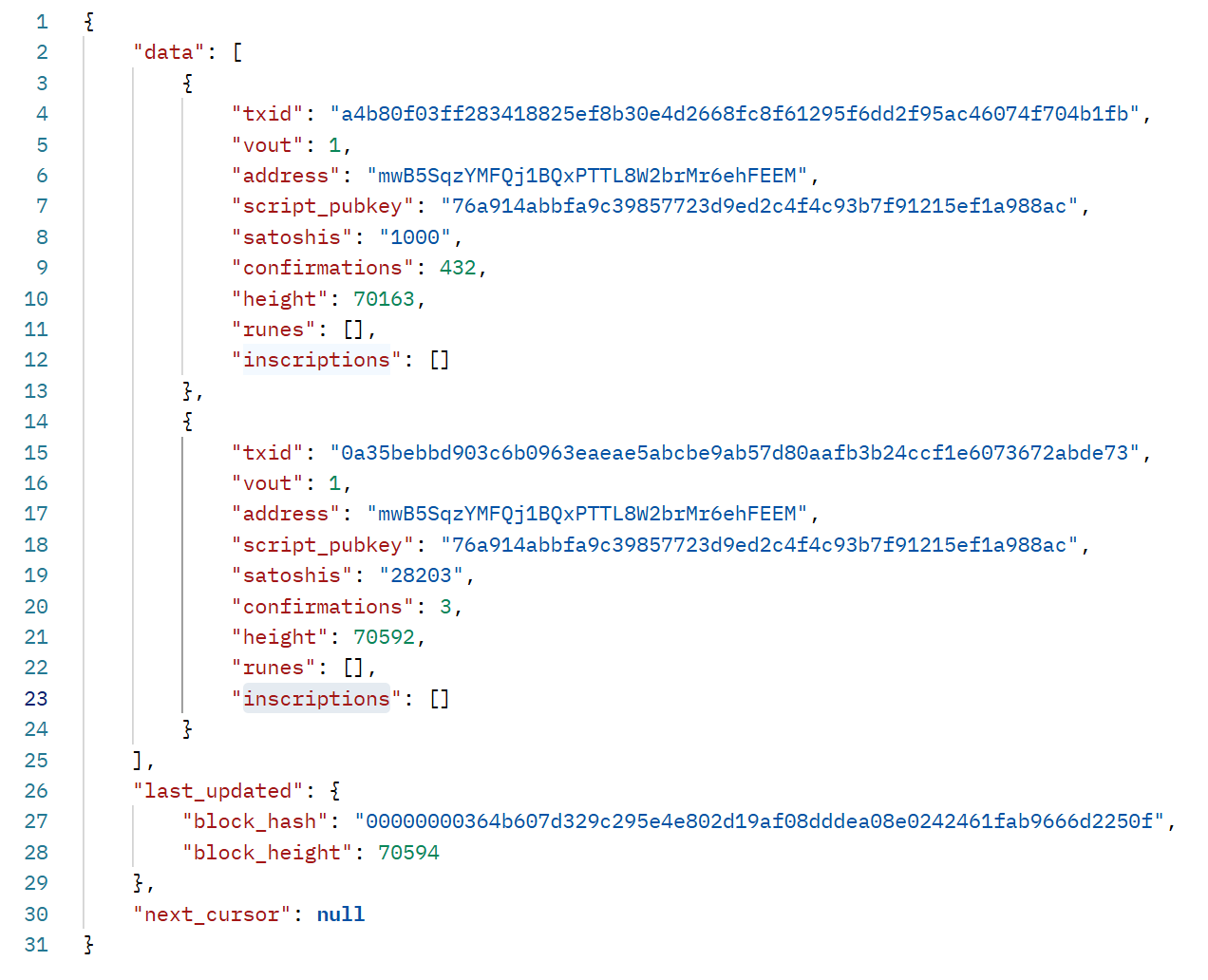 **In the given UTXO (Unspent Transaction Output) data:**
**txid (Transaction ID)**:
A unique identifier for the Bitcoin transaction that created this UTXO.
`"txid": "a4b80f03ff283418825ef8b30e4d2668fc8f61295f6dd2f95ac46074f704b1fb"`
**vout (Output Index)**:
The index of this specific output in the transaction.
A Bitcoin transaction can have multiple outputs, and vout specifies which output is being referenced.
`"vout" : 1` means this is the second output (indexes start at 0).
Together, `txid `and `vout `uniquely identify a UTXO, which can be spent in a future transaction.
**Each Transaction Creates Outputs**
Each Bitcoin transaction can create multiple outputs. The **vout** index refers to the specific output within that transaction.
* `"txid": "a4b80f03ff28..."` has an output at vout: 1.
* `"txid": "0a35bebbd903..."` also has an output at vout: 1.
These are separate transactions, meaning each `txid `corresponds to a different transaction, but both have at least two outputs (one at index 0 and another at index 1).
**In our case each UTXO Comes from a Different Transaction**
Even though both UTXOs belong to the same address (`mwB5SqzYMFQj1BQxPTTL8W2brMr6ehFEEM`), they originate from separate transactions, making their **combination of txid and vout unique**.
in the screenshot below we can witness that `"txid": "0a35bebbd903..." `has two outputs and one of them, with the `vout:1` for that transaction, was an input UTXO to our address.
**In the given UTXO (Unspent Transaction Output) data:**
**txid (Transaction ID)**:
A unique identifier for the Bitcoin transaction that created this UTXO.
`"txid": "a4b80f03ff283418825ef8b30e4d2668fc8f61295f6dd2f95ac46074f704b1fb"`
**vout (Output Index)**:
The index of this specific output in the transaction.
A Bitcoin transaction can have multiple outputs, and vout specifies which output is being referenced.
`"vout" : 1` means this is the second output (indexes start at 0).
Together, `txid `and `vout `uniquely identify a UTXO, which can be spent in a future transaction.
**Each Transaction Creates Outputs**
Each Bitcoin transaction can create multiple outputs. The **vout** index refers to the specific output within that transaction.
* `"txid": "a4b80f03ff28..."` has an output at vout: 1.
* `"txid": "0a35bebbd903..."` also has an output at vout: 1.
These are separate transactions, meaning each `txid `corresponds to a different transaction, but both have at least two outputs (one at index 0 and another at index 1).
**In our case each UTXO Comes from a Different Transaction**
Even though both UTXOs belong to the same address (`mwB5SqzYMFQj1BQxPTTL8W2brMr6ehFEEM`), they originate from separate transactions, making their **combination of txid and vout unique**.
in the screenshot below we can witness that `"txid": "0a35bebbd903..." `has two outputs and one of them, with the `vout:1` for that transaction, was an input UTXO to our address.
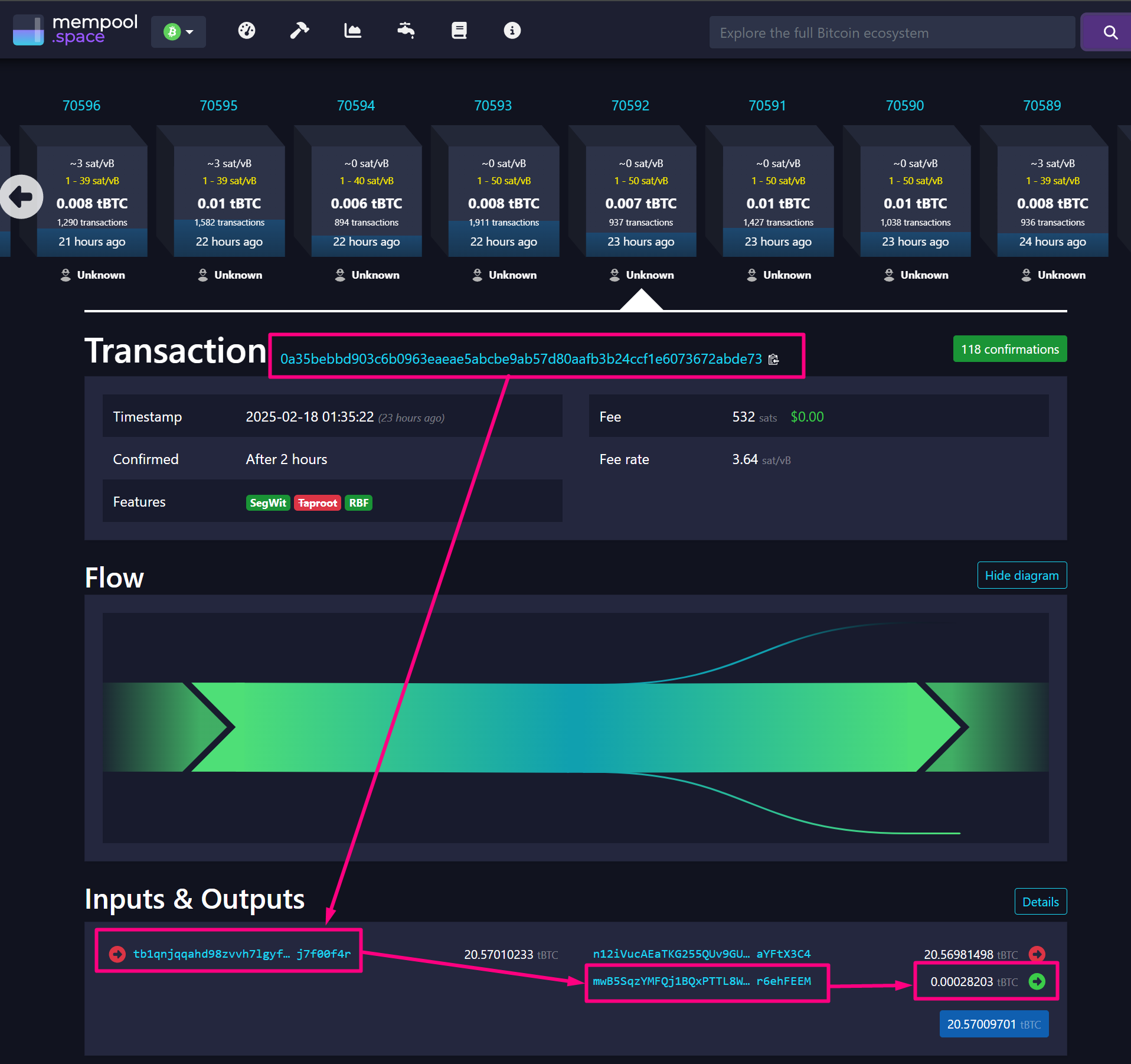 Similarly, the transaction with `txid: "0a35bebbd903..." ` has two outputs. One of them, with index `vout:1`, became an input UTXO for our address when funds were spent in a new transaction. The remaining change from the transaction was sent back to our address. Refer to the screenshot below.
 **Why This Matters**
When spending a UTXO in a new transaction, you must reference its **exact** `txid `and `vout`. Since each `txid `is different, these are **two separate UTXOs**, even though both have` vout: 1`.
This returns a list of UTXOs available for spending. Identify the UTXO’s txid and vout to use in the next step.
Let's generate a second address on Bitcoin Testnet Blockchain and create UTXO to send tBTC from Address1 to Address2
```bash theme={null}
bitcoin-cli -testnet4 getnewaddress "Address2"
mxVhXyQgXYaJ1ZfuWBa7QGUyH97obnYnkA
```
*
**Why This Matters**
When spending a UTXO in a new transaction, you must reference its **exact** `txid `and `vout`. Since each `txid `is different, these are **two separate UTXOs**, even though both have` vout: 1`.
This returns a list of UTXOs available for spending. Identify the UTXO’s txid and vout to use in the next step.
Let's generate a second address on Bitcoin Testnet Blockchain and create UTXO to send tBTC from Address1 to Address2
```bash theme={null}
bitcoin-cli -testnet4 getnewaddress "Address2"
mxVhXyQgXYaJ1ZfuWBa7QGUyH97obnYnkA
```
*
 * Let's create a Raw transaction using bitcoin-cli command
Use the UTXO details to create a raw transaction. Replace placeholders with actual values:
```bash theme={null}
bitcoin-cli createrawtransaction '\[\{"txid":"UTXO\_TXID","vout": 1..n}]' '\{"RECIPIENT\_ADDRESS"\:amount,"CHANGE\_ADDRESS"\:amount}'
```
* `UTXO_TXID`: The transaction ID of the unspent output.
* `UTXO_VOUT`: The output index of the UTXO.
* `RECIPIENT_ADDRESS`: The address receiving Bitcoin.
* `AMOUNT`: The amount (in BTC) to send.
* `CHANGE_ADDRESS`: Your change address for receiving remaining funds.
* `CHANGE_AMOUNT`: The remaining balance after subtracting the transaction fee.
This command constructs a raw Bitcoin transaction, using a specific UTXO as an input and defining two output addresses with specified amounts. The generated raw transaction must be **signed** and **broadcasted** to the network to take effect.
```bash theme={null}
bitcoin-cli createrawtransaction '[\{"txid":"0a35bebbd903c6b0963eaeae5abcbe9ab57d80aafb3b24ccf1e6073672abde73", "vout":1 }]' '\{"mxVhXyQgXYaJ1ZfuWBa7QGUyH97obnYnkA":0.00015206,
"mwB5SqzYMFQj1BQxPTTL8W2brMr6ehFEEM":0.00001}'
```
* `createrawtransaction` - Creates a raw Bitcoin transaction without signing or broadcasting it.
* First argument `[\{"txid":"...","vout":1 }]` – Specifies the transaction input:
* txid is the transaction ID from which the UTXO is being spent.
* vout specifies the output index (1 in this case) from the previous transaction, meaning we are using the second output as an input.
* Second argument `{"mxVhXyQgXYaJ1ZfuWBa7QGUyH97obnYnkA":0.00015206, "mwB5SqzYMFQj1BQxPTTL8W2brMr6ehFEEM":0.00001}`– Defines the outputs:
* Sends 0.00015206 tBTC to address `mxVhXyQgXYaJ1ZfuWBa7QGUyH97obnYnkA`.
* Sends 0.00001 tBTC to address `mwB5SqzYMFQj1BQxPTTL8W2brMr6ehFEEM`.
*
* Let's create a Raw transaction using bitcoin-cli command
Use the UTXO details to create a raw transaction. Replace placeholders with actual values:
```bash theme={null}
bitcoin-cli createrawtransaction '\[\{"txid":"UTXO\_TXID","vout": 1..n}]' '\{"RECIPIENT\_ADDRESS"\:amount,"CHANGE\_ADDRESS"\:amount}'
```
* `UTXO_TXID`: The transaction ID of the unspent output.
* `UTXO_VOUT`: The output index of the UTXO.
* `RECIPIENT_ADDRESS`: The address receiving Bitcoin.
* `AMOUNT`: The amount (in BTC) to send.
* `CHANGE_ADDRESS`: Your change address for receiving remaining funds.
* `CHANGE_AMOUNT`: The remaining balance after subtracting the transaction fee.
This command constructs a raw Bitcoin transaction, using a specific UTXO as an input and defining two output addresses with specified amounts. The generated raw transaction must be **signed** and **broadcasted** to the network to take effect.
```bash theme={null}
bitcoin-cli createrawtransaction '[\{"txid":"0a35bebbd903c6b0963eaeae5abcbe9ab57d80aafb3b24ccf1e6073672abde73", "vout":1 }]' '\{"mxVhXyQgXYaJ1ZfuWBa7QGUyH97obnYnkA":0.00015206,
"mwB5SqzYMFQj1BQxPTTL8W2brMr6ehFEEM":0.00001}'
```
* `createrawtransaction` - Creates a raw Bitcoin transaction without signing or broadcasting it.
* First argument `[\{"txid":"...","vout":1 }]` – Specifies the transaction input:
* txid is the transaction ID from which the UTXO is being spent.
* vout specifies the output index (1 in this case) from the previous transaction, meaning we are using the second output as an input.
* Second argument `{"mxVhXyQgXYaJ1ZfuWBa7QGUyH97obnYnkA":0.00015206, "mwB5SqzYMFQj1BQxPTTL8W2brMr6ehFEEM":0.00001}`– Defines the outputs:
* Sends 0.00015206 tBTC to address `mxVhXyQgXYaJ1ZfuWBa7QGUyH97obnYnkA`.
* Sends 0.00001 tBTC to address `mwB5SqzYMFQj1BQxPTTL8W2brMr6ehFEEM`.
*
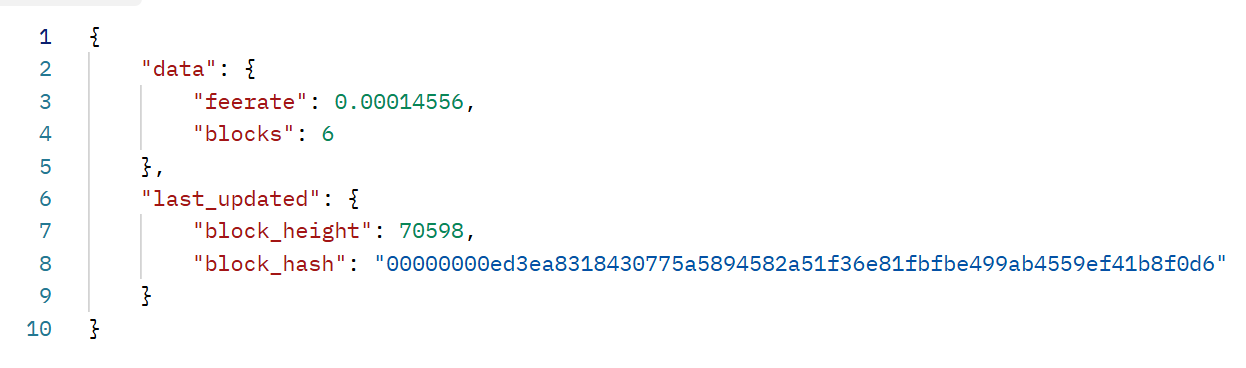
 Maestro has two APIs that you can use to calculate estimated fees and the minimum, median, and maximum fee rates for a transaction to be verified on a block.
Use Maestro's API to get the recommended fee rate:
```bash theme={null}
curl --location 'https://xbt-testnet.gomaestro-api.org/v0/rpc/transaction/estimatefee/6' \
--header 'api-key: \{MAESTRO\_API\_KEY}'
```
This API returns an estimate fee rate for 6 transaction verifications. Select a fee rate and adjust the `CHANGE_AMOUNT `accordingly. See Mempool Block Fee Rates Maestro API Documentation
Maestro has two APIs that you can use to calculate estimated fees and the minimum, median, and maximum fee rates for a transaction to be verified on a block.
Use Maestro's API to get the recommended fee rate:
```bash theme={null}
curl --location 'https://xbt-testnet.gomaestro-api.org/v0/rpc/transaction/estimatefee/6' \
--header 'api-key: \{MAESTRO\_API\_KEY}'
```
This API returns an estimate fee rate for 6 transaction verifications. Select a fee rate and adjust the `CHANGE_AMOUNT `accordingly. See Mempool Block Fee Rates Maestro API Documentation
 Use Maestro Mempool API to calculate min, median and max block fee rates per tx [https://xbt-testnet.gomaestro-api.org/v0/mempool/fee\\\_rates](https://xbt-testnet.gomaestro-api.org/v0/mempool/fee\\_rates)
```bash theme={null}
curl --location 'https://xbt-testnet.gomaestro-api.org/v0/mempool/fee_rates' \
--header 'api-key: \{YOUR_MAESTRO_ENTERPRISE_API_KEY\}'
```
This API returns fee rates for different speeds (low, medium, high). Select a fee rate and adjust the `CHANGE_AMOUNT `accordingly. See Mempool Block Fee Rates Maestro API Documentation.
Use Maestro Mempool API to calculate min, median and max block fee rates per tx [https://xbt-testnet.gomaestro-api.org/v0/mempool/fee\\\_rates](https://xbt-testnet.gomaestro-api.org/v0/mempool/fee\\_rates)
```bash theme={null}
curl --location 'https://xbt-testnet.gomaestro-api.org/v0/mempool/fee_rates' \
--header 'api-key: \{YOUR_MAESTRO_ENTERPRISE_API_KEY\}'
```
This API returns fee rates for different speeds (low, medium, high). Select a fee rate and adjust the `CHANGE_AMOUNT `accordingly. See Mempool Block Fee Rates Maestro API Documentation.
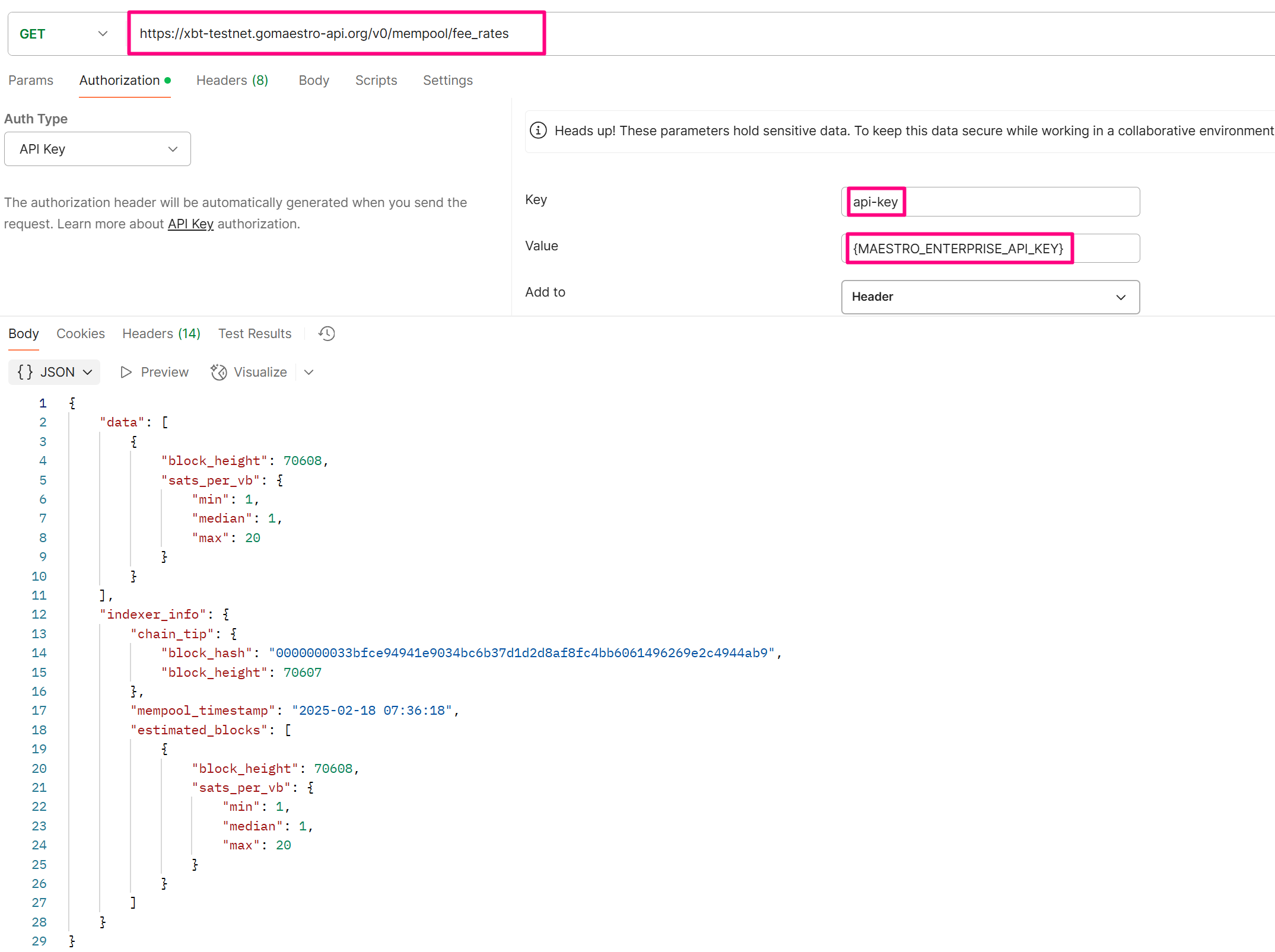 This section contains information related to the block and its fee estimates.
```bash theme={null}
"data": \[]
```
* `block_height`: The height (or index) of the block on the blockchain. In this case, it's block number 70608.
* `sats_per_vb` (Satoshis per virtual byte): This shows the estimated fee rate in (sats/vbyte), which is used for calculating transaction fees.
```bash theme={null}
Indexer_info": {}
```
* `chain_tip`: The latest block in the blockchain that is known by the indexer. It provides the block hash and the block height of the latest confirmed block.
* `block_hash`: The hash of the latest block in the chain.
* `block_height`: The height of the latest block in the blockchain.
* `mempool_timestamp`: The timestamp of when the data related to the mempool was recorded. The mempool holds unconfirmed transactions waiting to be included in a block.
* `estimated_blocks`: The predicted next block and its fee structure.
```bash theme={null}
bitcoin-cli signrawtransactionwithwallet "RAW_TX_HEX"
```
This command returns a signed transaction `(hex)` ready for broadcasting.
This section contains information related to the block and its fee estimates.
```bash theme={null}
"data": \[]
```
* `block_height`: The height (or index) of the block on the blockchain. In this case, it's block number 70608.
* `sats_per_vb` (Satoshis per virtual byte): This shows the estimated fee rate in (sats/vbyte), which is used for calculating transaction fees.
```bash theme={null}
Indexer_info": {}
```
* `chain_tip`: The latest block in the blockchain that is known by the indexer. It provides the block hash and the block height of the latest confirmed block.
* `block_hash`: The hash of the latest block in the chain.
* `block_height`: The height of the latest block in the blockchain.
* `mempool_timestamp`: The timestamp of when the data related to the mempool was recorded. The mempool holds unconfirmed transactions waiting to be included in a block.
* `estimated_blocks`: The predicted next block and its fee structure.
```bash theme={null}
bitcoin-cli signrawtransactionwithwallet "RAW_TX_HEX"
```
This command returns a signed transaction `(hex)` ready for broadcasting.
 To check if the transaction is valid before broadcasting run the command below:
```bash theme={null}
bitcoin-cli testmempoolaccept '\["SIGNED\_TX\_HEX"\]'
```
If the command is valid and you provide a valid signed transaction (`SIGNED_TX_HEX`), it will return a JSON response where you can find the key-value pair - `"allowed":true` indicating whether the transaction would be accepted into the mempool or not.
Use Maestro’s API to push the transaction to the Bitcoin network:
```bash theme={null}
curl --location 'https\://xbt-testnet.gomaestro-api.org/v0/rpc/transaction/submit' \
--header 'Content-Type: text/plain' \
--header 'api-key: \{YOUR\_MAESTRO\_API\_KEY}' \
--data '"02000000010a336d7554da8b351850e57712379081364520309bd0fdb0c410ca4e3f8161c5010000006a47304402203c4fd342c1e8a8047ae1f5cd3c91bfed07328bc22d456f3db24a23c1769f51c40220523bed0042446df1830b44fe4ded71c6085a6e0bc389b2635abb3c4b385eff6f012102bfdbc8b5243526c89c31da25b9669121a7c98a4ba44a5c7d3a79fb0d58ea5e7bfdffffff02a03d0000000000001976a9140a5f580e3773f79eb266c9553c4f8187675bec9b88ace8030000000000001976a914861ba3640bb054ab203c13222fda0c2b58c3471788ac00000000"'
```
If successful, the response includes the transaction ID.
To check if the transaction is valid before broadcasting run the command below:
```bash theme={null}
bitcoin-cli testmempoolaccept '\["SIGNED\_TX\_HEX"\]'
```
If the command is valid and you provide a valid signed transaction (`SIGNED_TX_HEX`), it will return a JSON response where you can find the key-value pair - `"allowed":true` indicating whether the transaction would be accepted into the mempool or not.
Use Maestro’s API to push the transaction to the Bitcoin network:
```bash theme={null}
curl --location 'https\://xbt-testnet.gomaestro-api.org/v0/rpc/transaction/submit' \
--header 'Content-Type: text/plain' \
--header 'api-key: \{YOUR\_MAESTRO\_API\_KEY}' \
--data '"02000000010a336d7554da8b351850e57712379081364520309bd0fdb0c410ca4e3f8161c5010000006a47304402203c4fd342c1e8a8047ae1f5cd3c91bfed07328bc22d456f3db24a23c1769f51c40220523bed0042446df1830b44fe4ded71c6085a6e0bc389b2635abb3c4b385eff6f012102bfdbc8b5243526c89c31da25b9669121a7c98a4ba44a5c7d3a79fb0d58ea5e7bfdffffff02a03d0000000000001976a9140a5f580e3773f79eb266c9553c4f8187675bec9b88ace8030000000000001976a914861ba3640bb054ab203c13222fda0c2b58c3471788ac00000000"'
```
If successful, the response includes the transaction ID.
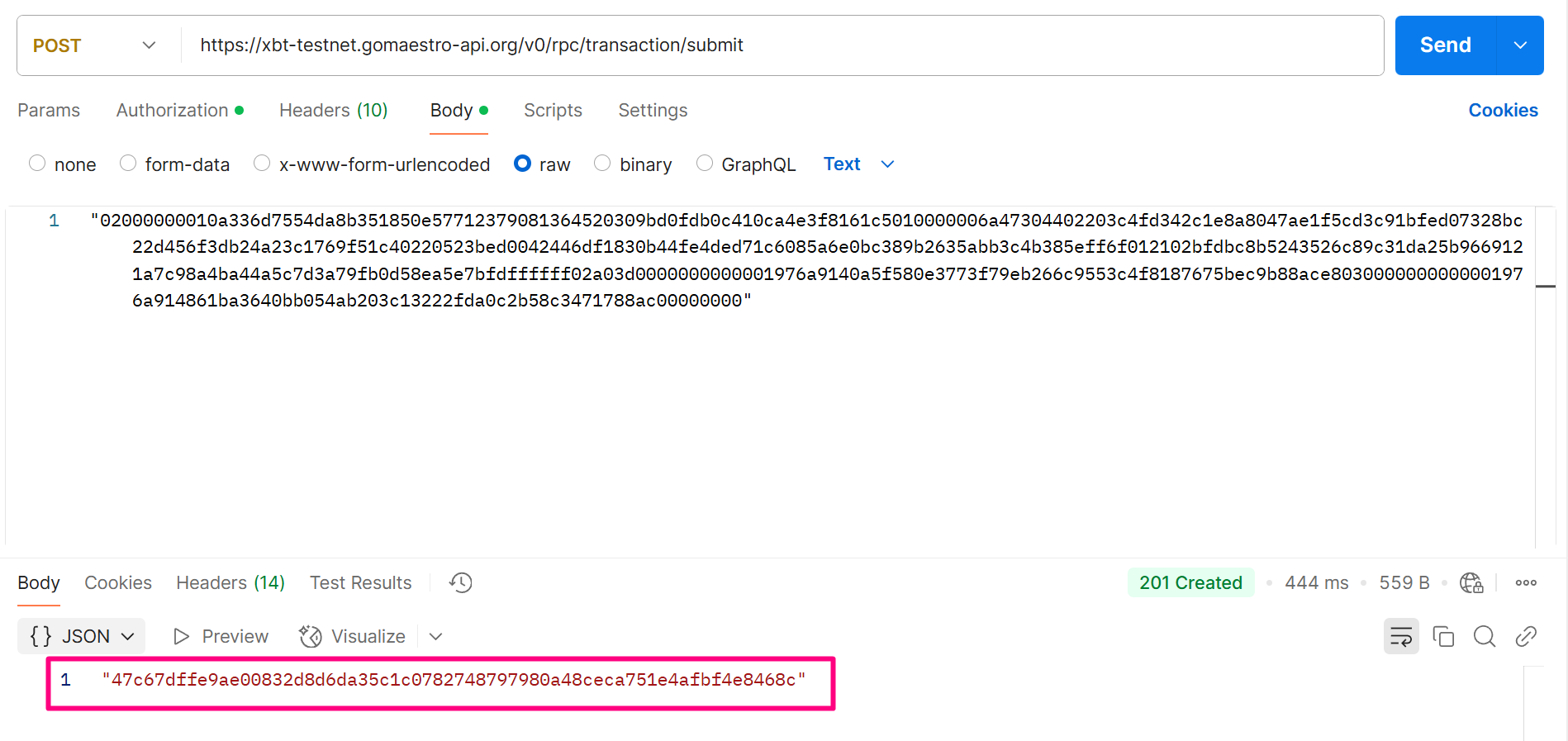 Use Maestro Bitcoin Explorer to monitor the Transaction
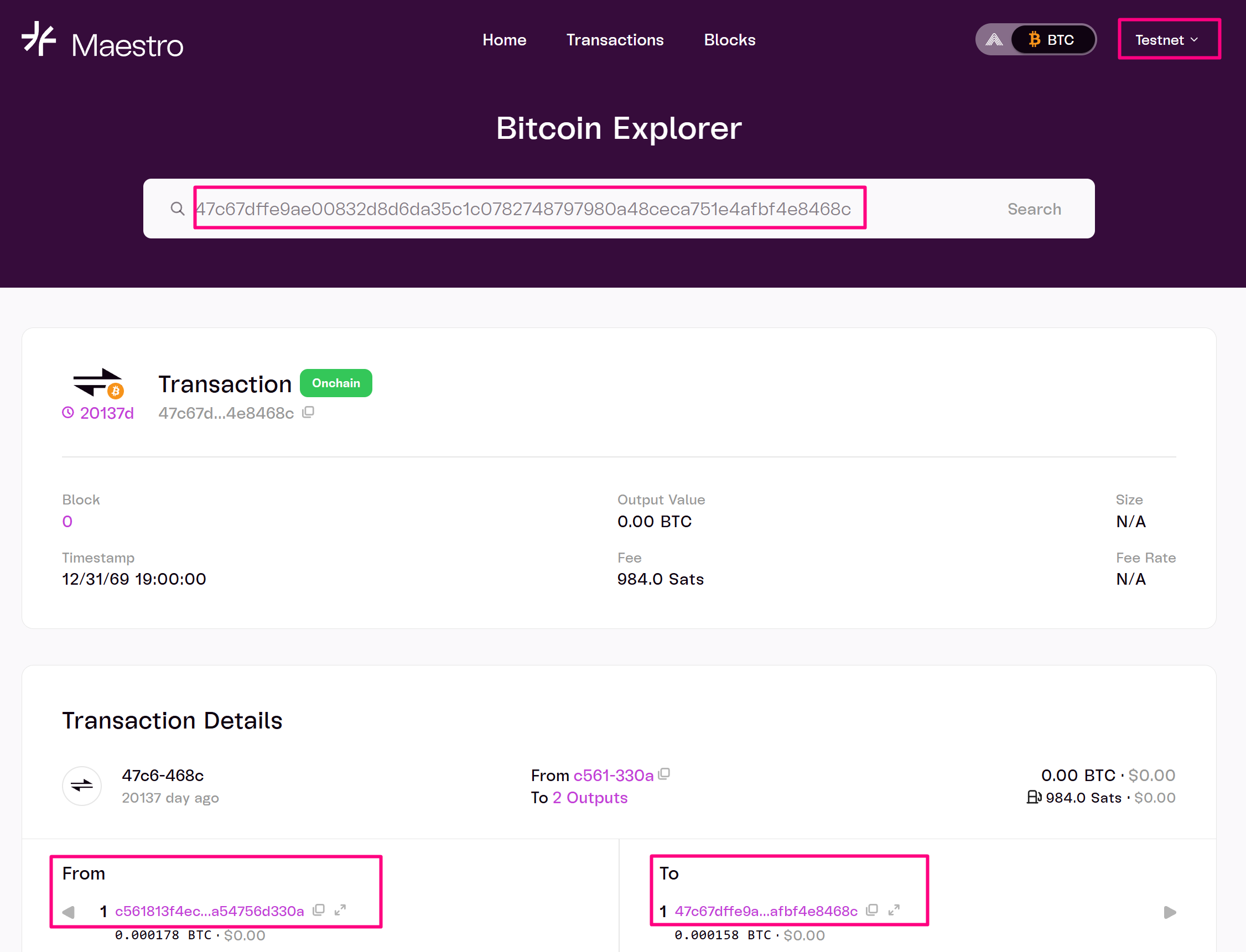 Use Mempool UTXO by Address API in order to monitor the broadcasted transaction.
```bash theme={null}
curl --location 'https://xbt-testnet.gomaestro-api.org/v0/mempool/addresses/mxVhXyQgXYaJ1ZfuWBa7QGUyH97obnYnkA/utxos' \
--header 'api-key: \{YOUR_MAESTRO_ENTERPRISE_API_KEY}'
```
Use Mempool UTXO by Address API in order to monitor the broadcasted transaction.
```bash theme={null}
curl --location 'https://xbt-testnet.gomaestro-api.org/v0/mempool/addresses/mxVhXyQgXYaJ1ZfuWBa7QGUyH97obnYnkA/utxos' \
--header 'api-key: \{YOUR_MAESTRO_ENTERPRISE_API_KEY}'
```
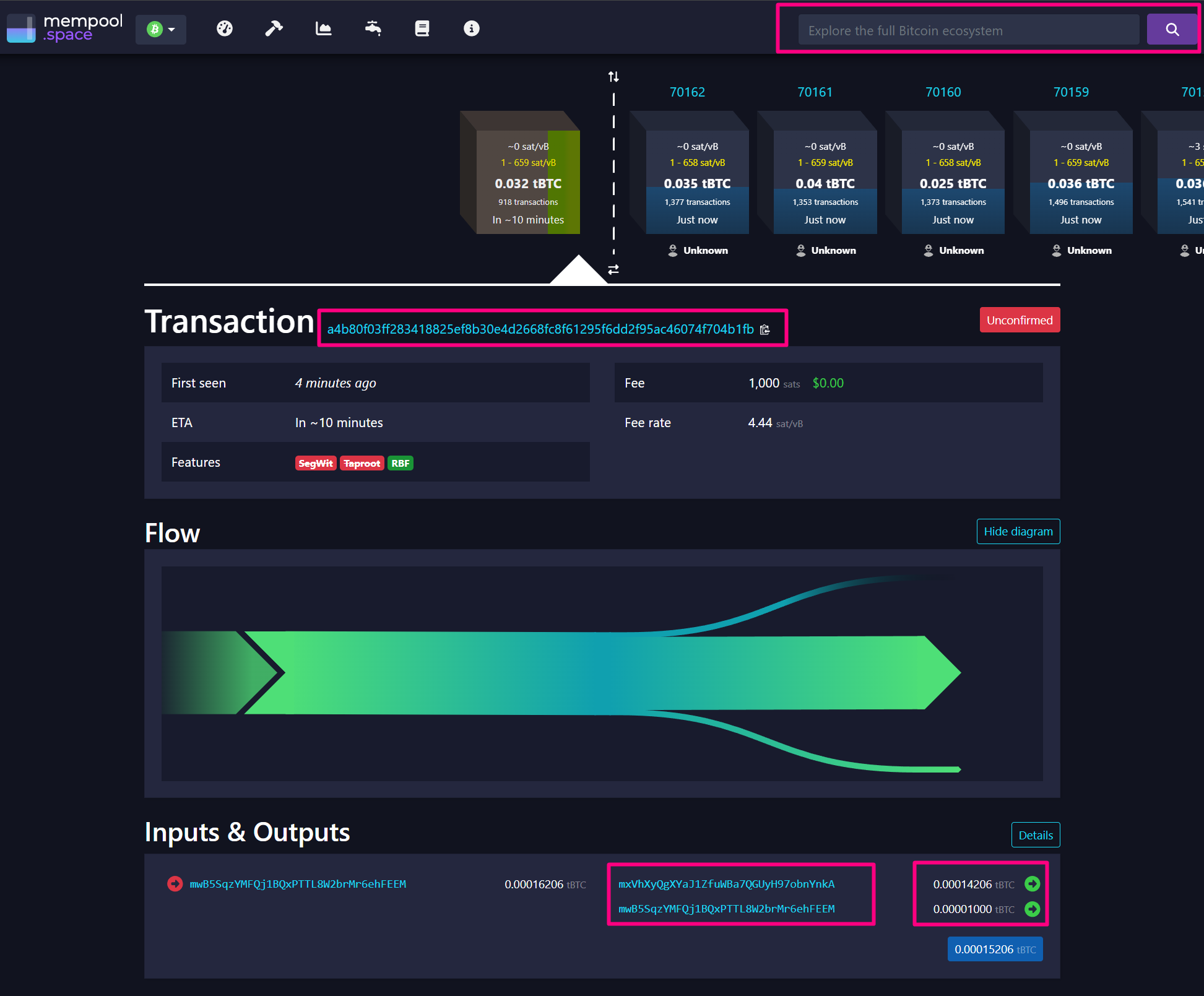
 To see the transaction on the testnet4 blockchain use mempool.space/testnet4
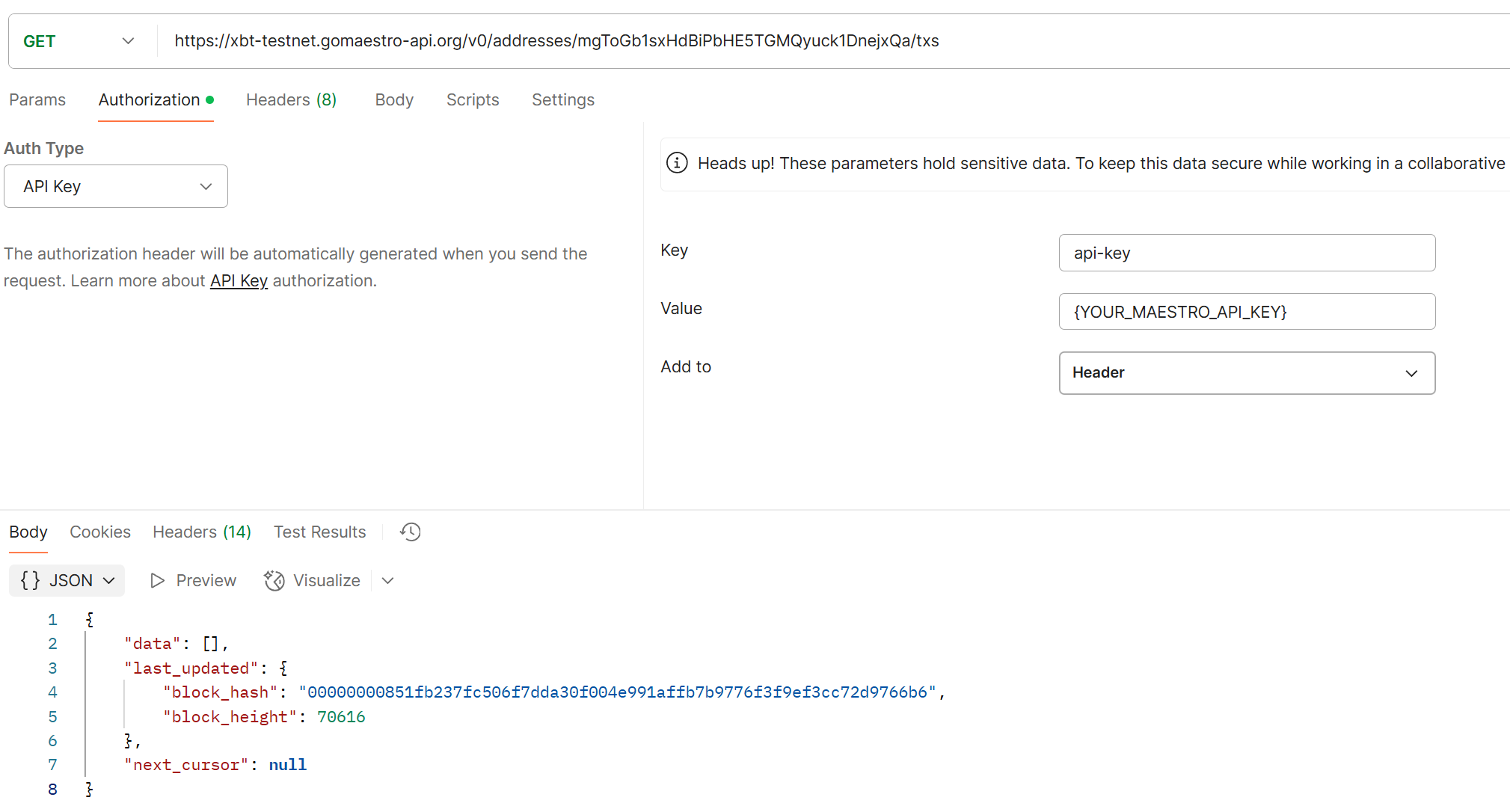
 [Transactions by Address](/bitcoin/blockchain-indexer-api/addresses/transactions-by-address)
```bash theme={null}
curl --location 'https://xbt-testnet.gomaestro-api.org/v0/addresses/mgToGb1sxHdBiPbHE5TGMQyuck1DnejxQa/txs' \
--header 'api-key: \{YOUR_MAESTRO_API_KEY}'
```
[Transactions by Address](/bitcoin/blockchain-indexer-api/addresses/transactions-by-address)
```bash theme={null}
curl --location 'https://xbt-testnet.gomaestro-api.org/v0/addresses/mgToGb1sxHdBiPbHE5TGMQyuck1DnejxQa/txs' \
--header 'api-key: \{YOUR_MAESTRO_API_KEY}'
```
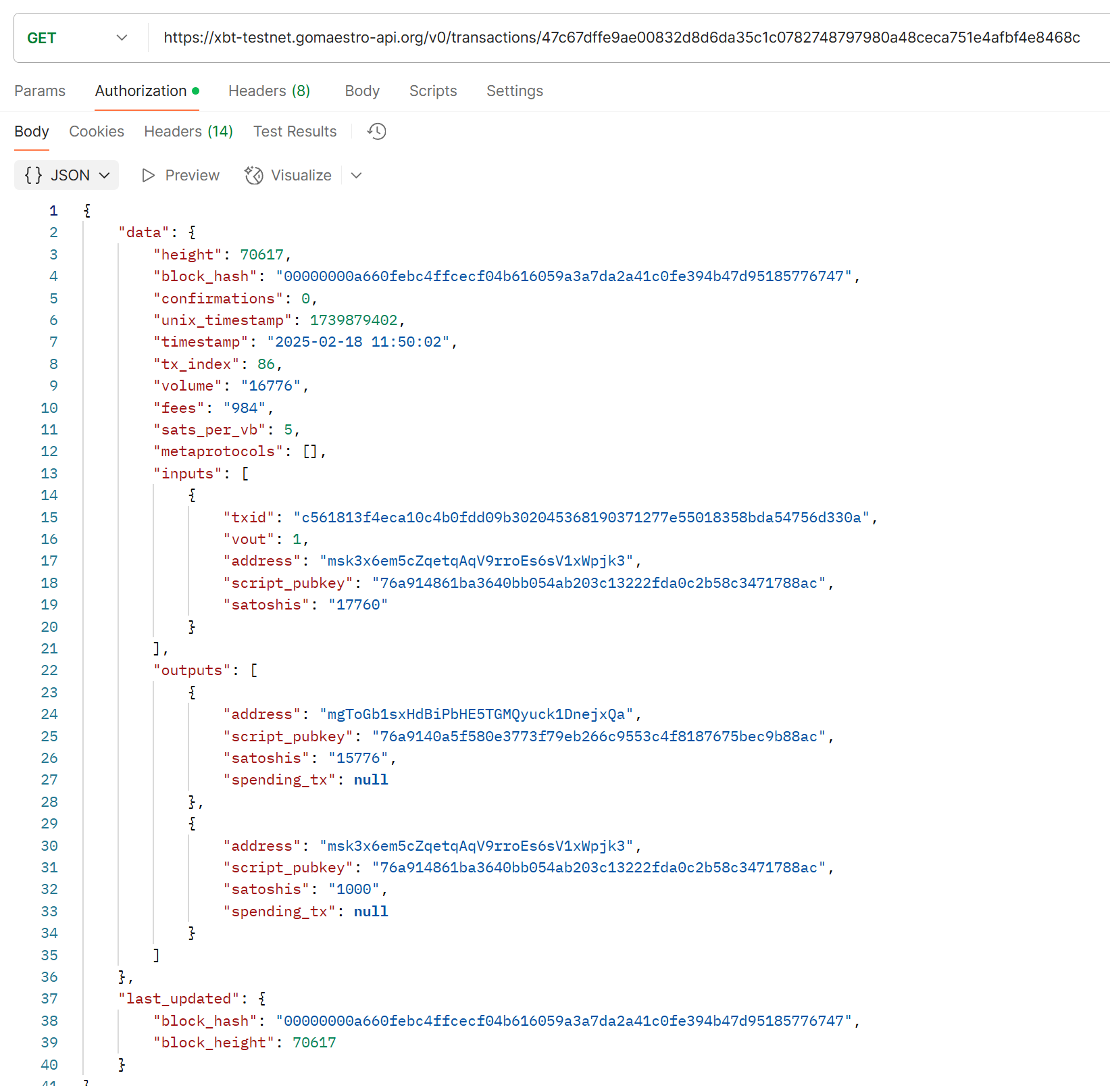
 [Transaction Info](/bitcoin/blockchain-indexer-api/transactions/transaction-info)
 Congrats! you made it to this point and now you know how to create a Bitcoin Transaction using Maestro APIs.
Next Topic -> How to Create a Cardano Transaction
Congrats! you made it to this point and now you know how to create a Bitcoin Transaction using Maestro APIs.
Next Topic -> How to Create a Cardano Transaction