> ## Documentation Index
> Fetch the complete documentation index at: https://docs.gomaestro.org/llms.txt
> Use this file to discover all available pages before exploring further.
# POST a Turbo Transaction
> Tutorial guide to submit Cardano Turbo transactions for fast and efficient transaction processing using Maestro's Turbo API.
## Prerequisites
Before submitting an API request, ensure you have completed the following:
* Create an Account
* Create a Project
* Installed the [Eternl wallet](https://eternl.io/)
You need a Maestro **Composer-level subscription or higher to access the Turbo Transactions feature**. Otherwise, you can use the Submit Transaction[ ]()endpoint.
## Steps to Submit an API Request
Turbo Transactions *supercharge your transaction submission* processes. This guide will walk you through generating a transaction on Eternl and sending it to Maestro's Turbo Transaction endpoint.
### 1. Prepare Your Wallet
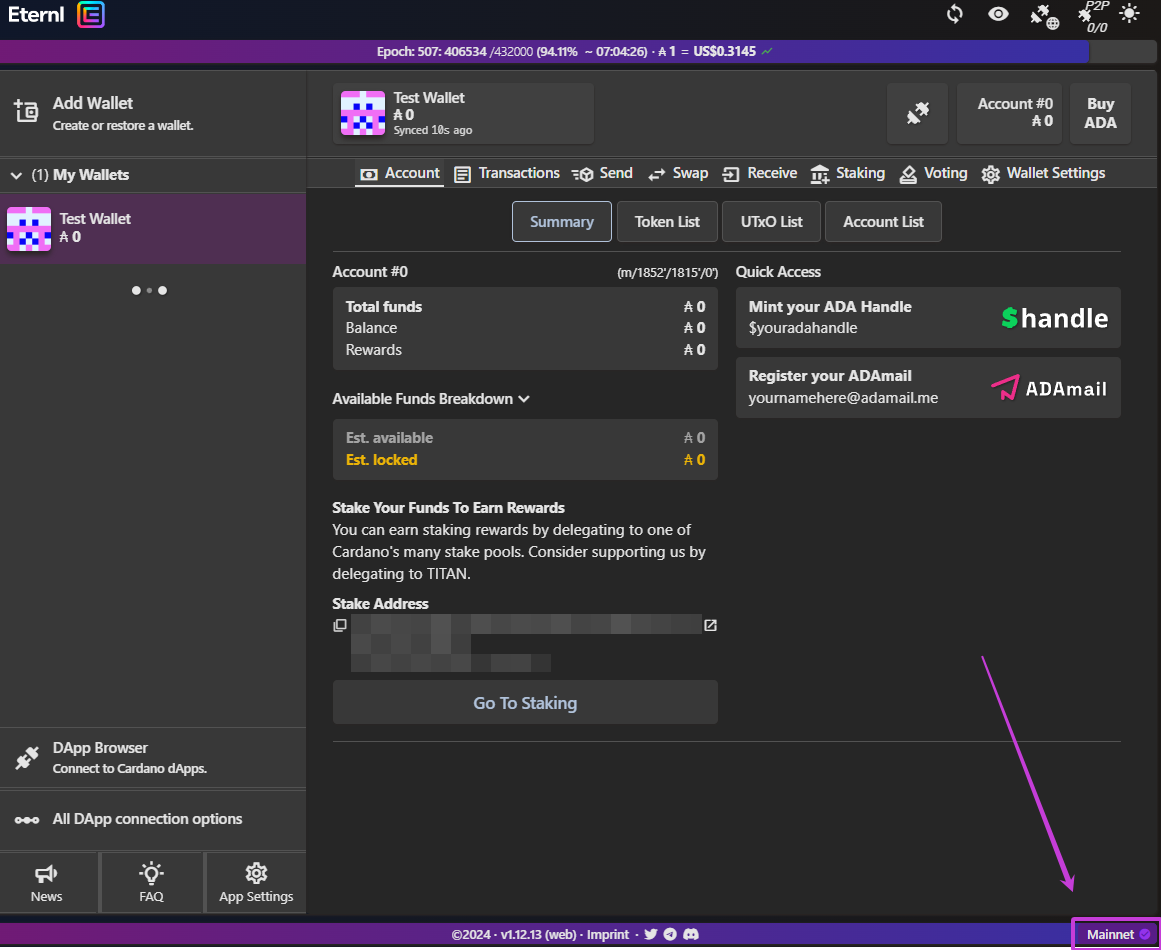
* Switch the network to `Pre-Production Testnet` by selecting it from the bottom-right selector of the Eternl wallet interface.
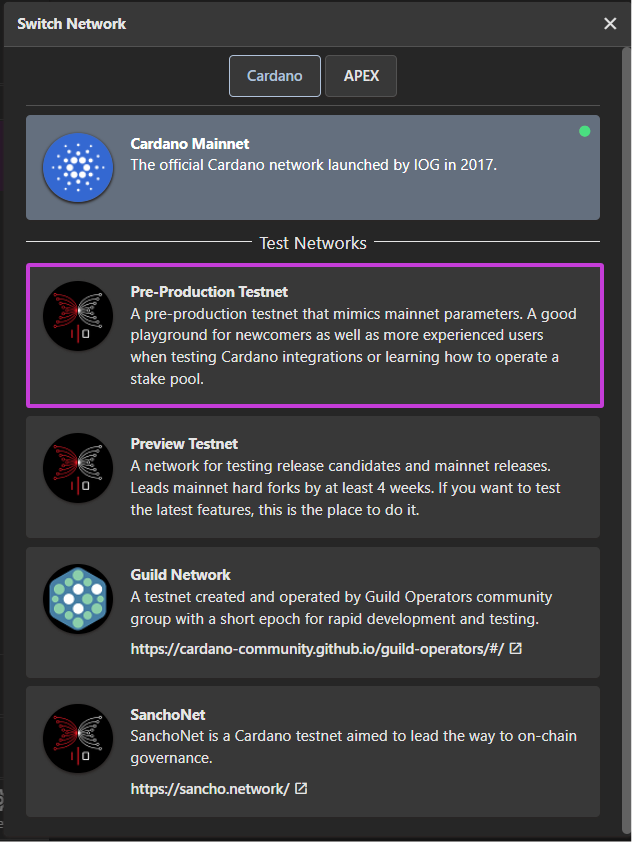 * **Create or restore two separate wallets** in [Eternl ]()to test the transaction.
 * After creating the wallets, disable the `Transaction Auto Submit` option.
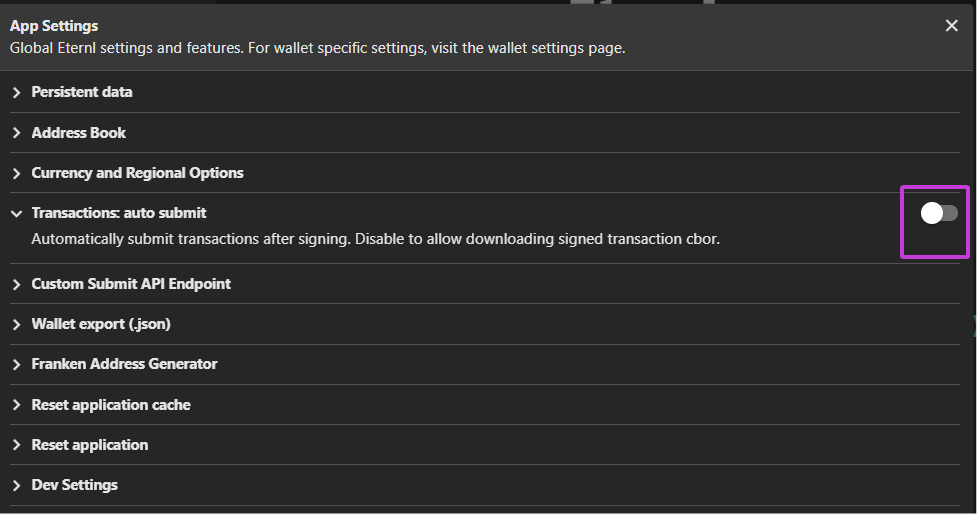 * Find your **w**allet address in the Eternl dashboard under the `Receive` tab.
 * Send test ADA (tADA) to one (or both) wallets using the [Cardano Faucet](https://docs.cardano.org/cardano-testnet/tools/faucet)[ here](https://docs.cardano.org/cardano-testnet/tools/faucet).

### 2. Configure Eternl to Use Maestro's Turbo Submit Endpoint
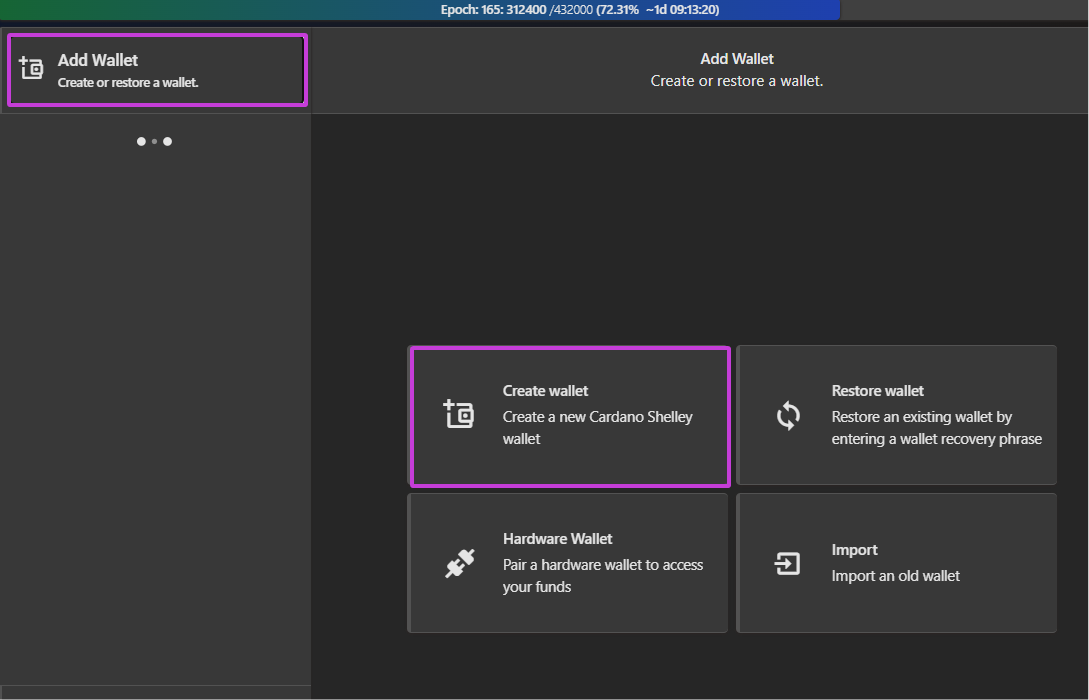
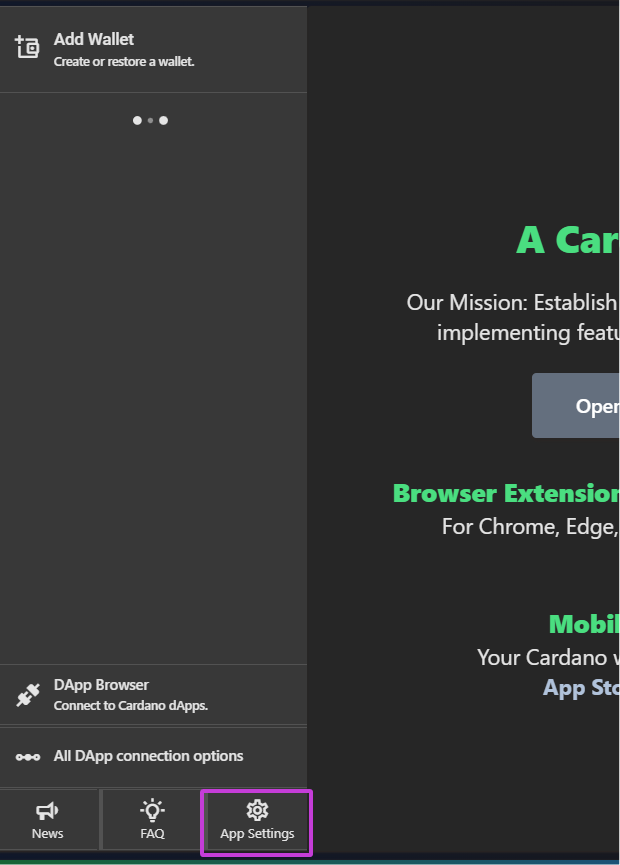
* Open Eternl `App Settings`
* Send test ADA (tADA) to one (or both) wallets using the [Cardano Faucet](https://docs.cardano.org/cardano-testnet/tools/faucet)[ here](https://docs.cardano.org/cardano-testnet/tools/faucet).

### 2. Configure Eternl to Use Maestro's Turbo Submit Endpoint
* Open Eternl `App Settings`
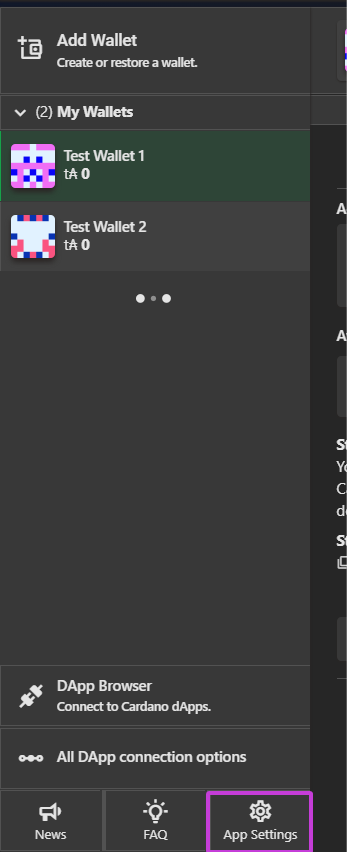 * Expand the `Custom Submit API Endpoint` section and click `Add`
 * Enter the below **Turbo Transaction** Submit API URL, replacing `` with your project key found in [your project dashboard.](https://dashboard.gomaestro.org/login)
```
https://preprod.gomaestro-api.org/v1/txmanager/turbosubmit?api-key=
```

* Click `Save`
- If your subscription does not support **Turbo Transactions**, you can try the standard \*\*Submit \*\*API.
- Upgrade to the Pay-as-you-go **Conductor** [subscription](https://www.gomaestro.org/pricing) for easy access and support for Turbo Transactions.
### 3. Generating a Transaction
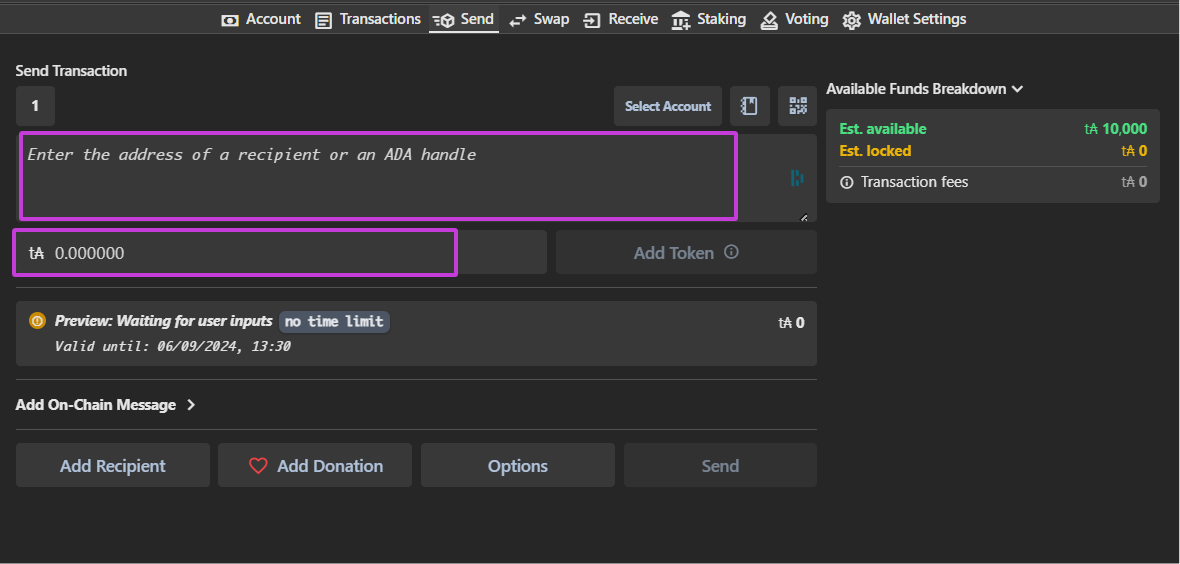
* Go to the `Send` tab
* Enter the receiving wallet address to create and sign a transaction between the two test wallets. Then, specify the amount of test ADA to send.
* Enter the below **Turbo Transaction** Submit API URL, replacing `` with your project key found in [your project dashboard.](https://dashboard.gomaestro.org/login)
```
https://preprod.gomaestro-api.org/v1/txmanager/turbosubmit?api-key=
```

* Click `Save`
- If your subscription does not support **Turbo Transactions**, you can try the standard \*\*Submit \*\*API.
- Upgrade to the Pay-as-you-go **Conductor** [subscription](https://www.gomaestro.org/pricing) for easy access and support for Turbo Transactions.
### 3. Generating a Transaction
* Go to the `Send` tab
* Enter the receiving wallet address to create and sign a transaction between the two test wallets. Then, specify the amount of test ADA to send.
 * Enter your **spending password** and click `Sign`.

### 4. Submit the Transaction
**Option 1**
* Click `Submit` to hit the **Turbo Transaction** endpoint via Eternl.
* Enter your **spending password** and click `Sign`.

### 4. Submit the Transaction
**Option 1**
* Click `Submit` to hit the **Turbo Transaction** endpoint via Eternl.
 **Option 2**
Click `Download(signed)`
**Option 2**
Click `Download(signed)`
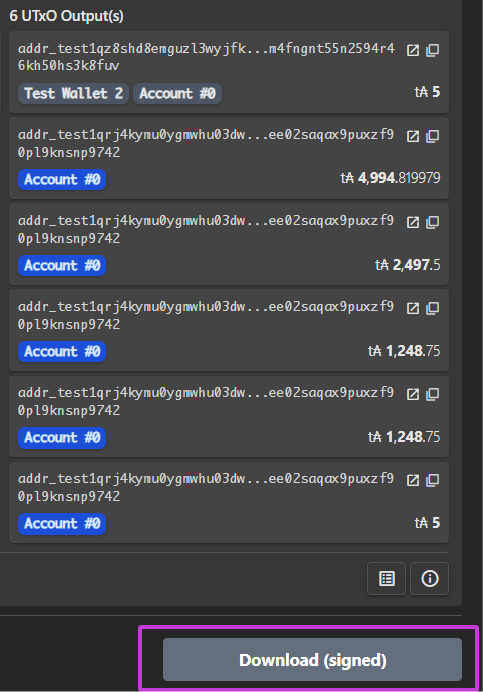 * Copy the `cBorHex` from the downloaded transaction file. In this example, that will be:
```
> 84a500818258206c4200b0697da7bb625007431df049c70fcc6f548a35f706f9f3356e2c91ee51000186825839008f0bb4f9da382fc5c4926d55130ffbc6f9b4df9461ca922dd310aade6e923c8acd41268395174a364a586ea99a26ba526aa16a3aead7a3ef1a004c4b4082583900e55b137c7911b75f8f8b5c83f82107e9c5a40d03e6eeb58bad2b4227a720eb63cb5bd34ac4923e8b114c672f543a0e98a1e18492bc3f2da71b0000000129b6e78b82583900e55b137c7911b75f8f8b5c83f82107e9c5a40d03e6eeb58bad2b4227a720eb63cb5bd34ac4923e8b114c672f543a0e98a1e18492bc3f2da71a94dcd36082583900e55b137c7911b75f8f8b5c83f82107e9c5a40d03e6eeb58bad2b4227a720eb63cb5bd34ac4923e8b114c672f543a0e98a1e18492bc3f2da71a4a6e69b082583900e55b137c7911b75f8f8b5c83f82107e9c5a40d03e6eeb58bad2b4227a720eb63cb5bd34ac4923e8b114c672f543a0e98a1e18492bc3f2da71a4a6e69b082583900e55b137c7911b75f8f8b5c83f82107e9c5a40d03e6eeb58bad2b4227a720eb63cb5bd34ac4923e8b114c672f543a0e98a1e18492bc3f2da71a004c4b40021a0002bf35031a042bb5290800a10081825820a92c0a0ddb77ae18ea28e7bcd7f6966af99f32a9a73fc84c5c2c0737f6e8903b5840307e1b7cfedbf33bc167a1779aa72a5379c2461caba02becb2786c4688af48f9c72029f89839d664848145c3d4e719a2122820bc188d279ded4f9c9e59c6e706f5f6
```
* Run the following command to create a binary stream:
```
> TRANSACTION=84a500818258206c4200b0697da7bb625007431df049c70fcc6f548a35f706f9f3356e2c91ee51000186825839008f0bb4f9da382fc5c4926d55130ffbc6f9b4df9461ca922dd310aade6e923c8acd41268395174a364a586ea99a26ba526aa16a3aead7a3ef1a004c4b4082583900e55b137c7911b75f8f8b5c83f82107e9c5a40d03e6eeb58bad2b4227a720eb63cb5bd34ac4923e8b114c672f543a0e98a1e18492bc3f2da71b0000000129b6e78b82583900e55b137c7911b75f8f8b5c83f82107e9c5a40d03e6eeb58bad2b4227a720eb63cb5bd34ac4923e8b114c672f543a0e98a1e18492bc3f2da71a94dcd36082583900e55b137c7911b75f8f8b5c83f82107e9c5a40d03e6eeb58bad2b4227a720eb63cb5bd34ac4923e8b114c672f543a0e98a1e18492bc3f2da71a4a6e69b082583900e55b137c7911b75f8f8b5c83f82107e9c5a40d03e6eeb58bad2b4227a720eb63cb5bd34ac4923e8b114c672f543a0e98a1e18492bc3f2da71a4a6e69b082583900e55b137c7911b75f8f8b5c83f82107e9c5a40d03e6eeb58bad2b4227a720eb63cb5bd34ac4923e8b114c672f543a0e98a1e18492bc3f2da71a004c4b40021a0002bf35031a042bb5290800a10081825820a92c0a0ddb77ae18ea28e7bcd7f6966af99f32a9a73fc84c5c2c0737f6e8903b5840307e1b7cfedbf33bc167a1779aa72a5379c2461caba02becb2786c4688af48f9c72029f89839d664848145c3d4e719a2122820bc188d279ded4f9c9e59c6e706f5f6
> xxd -r -p <<< ${TRANSACTION} > tx.signed.cbor.preprod
```
* Use your project API key to submit the transaction to the Maestro endpoint:
`/txmanager/turbosubmit`
```
> curl -X POST -H "Content-Type: application/cbor" -H "api-key: " --data-binary @tx.signed.cbor.preprod https://preprod.gomaestro-api.org/v1/txmanager/turbosubmit
```
The response is the `transaction hash` of the submitted transaction.
* Copy the `cBorHex` from the downloaded transaction file. In this example, that will be:
```
> 84a500818258206c4200b0697da7bb625007431df049c70fcc6f548a35f706f9f3356e2c91ee51000186825839008f0bb4f9da382fc5c4926d55130ffbc6f9b4df9461ca922dd310aade6e923c8acd41268395174a364a586ea99a26ba526aa16a3aead7a3ef1a004c4b4082583900e55b137c7911b75f8f8b5c83f82107e9c5a40d03e6eeb58bad2b4227a720eb63cb5bd34ac4923e8b114c672f543a0e98a1e18492bc3f2da71b0000000129b6e78b82583900e55b137c7911b75f8f8b5c83f82107e9c5a40d03e6eeb58bad2b4227a720eb63cb5bd34ac4923e8b114c672f543a0e98a1e18492bc3f2da71a94dcd36082583900e55b137c7911b75f8f8b5c83f82107e9c5a40d03e6eeb58bad2b4227a720eb63cb5bd34ac4923e8b114c672f543a0e98a1e18492bc3f2da71a4a6e69b082583900e55b137c7911b75f8f8b5c83f82107e9c5a40d03e6eeb58bad2b4227a720eb63cb5bd34ac4923e8b114c672f543a0e98a1e18492bc3f2da71a4a6e69b082583900e55b137c7911b75f8f8b5c83f82107e9c5a40d03e6eeb58bad2b4227a720eb63cb5bd34ac4923e8b114c672f543a0e98a1e18492bc3f2da71a004c4b40021a0002bf35031a042bb5290800a10081825820a92c0a0ddb77ae18ea28e7bcd7f6966af99f32a9a73fc84c5c2c0737f6e8903b5840307e1b7cfedbf33bc167a1779aa72a5379c2461caba02becb2786c4688af48f9c72029f89839d664848145c3d4e719a2122820bc188d279ded4f9c9e59c6e706f5f6
```
* Run the following command to create a binary stream:
```
> TRANSACTION=84a500818258206c4200b0697da7bb625007431df049c70fcc6f548a35f706f9f3356e2c91ee51000186825839008f0bb4f9da382fc5c4926d55130ffbc6f9b4df9461ca922dd310aade6e923c8acd41268395174a364a586ea99a26ba526aa16a3aead7a3ef1a004c4b4082583900e55b137c7911b75f8f8b5c83f82107e9c5a40d03e6eeb58bad2b4227a720eb63cb5bd34ac4923e8b114c672f543a0e98a1e18492bc3f2da71b0000000129b6e78b82583900e55b137c7911b75f8f8b5c83f82107e9c5a40d03e6eeb58bad2b4227a720eb63cb5bd34ac4923e8b114c672f543a0e98a1e18492bc3f2da71a94dcd36082583900e55b137c7911b75f8f8b5c83f82107e9c5a40d03e6eeb58bad2b4227a720eb63cb5bd34ac4923e8b114c672f543a0e98a1e18492bc3f2da71a4a6e69b082583900e55b137c7911b75f8f8b5c83f82107e9c5a40d03e6eeb58bad2b4227a720eb63cb5bd34ac4923e8b114c672f543a0e98a1e18492bc3f2da71a4a6e69b082583900e55b137c7911b75f8f8b5c83f82107e9c5a40d03e6eeb58bad2b4227a720eb63cb5bd34ac4923e8b114c672f543a0e98a1e18492bc3f2da71a004c4b40021a0002bf35031a042bb5290800a10081825820a92c0a0ddb77ae18ea28e7bcd7f6966af99f32a9a73fc84c5c2c0737f6e8903b5840307e1b7cfedbf33bc167a1779aa72a5379c2461caba02becb2786c4688af48f9c72029f89839d664848145c3d4e719a2122820bc188d279ded4f9c9e59c6e706f5f6
> xxd -r -p <<< ${TRANSACTION} > tx.signed.cbor.preprod
```
* Use your project API key to submit the transaction to the Maestro endpoint:
`/txmanager/turbosubmit`
```
> curl -X POST -H "Content-Type: application/cbor" -H "api-key: " --data-binary @tx.signed.cbor.preprod https://preprod.gomaestro-api.org/v1/txmanager/turbosubmit
```
The response is the `transaction hash` of the submitted transaction.