> ## Documentation Index
> Fetch the complete documentation index at: https://docs.gomaestro.org/llms.txt
> Use this file to discover all available pages before exploring further.
# Monitor Transactions
> Tutorial guide to monitor Cardano transactions using Maestro APIs with real-time tracking and notification setup.
## Prerequisites
Before you start monitoring transactions, make sure you have:
* Created an Account
* Created a Project
* Access to the **Transactions** page on your Maestro dashboard.
## Overview
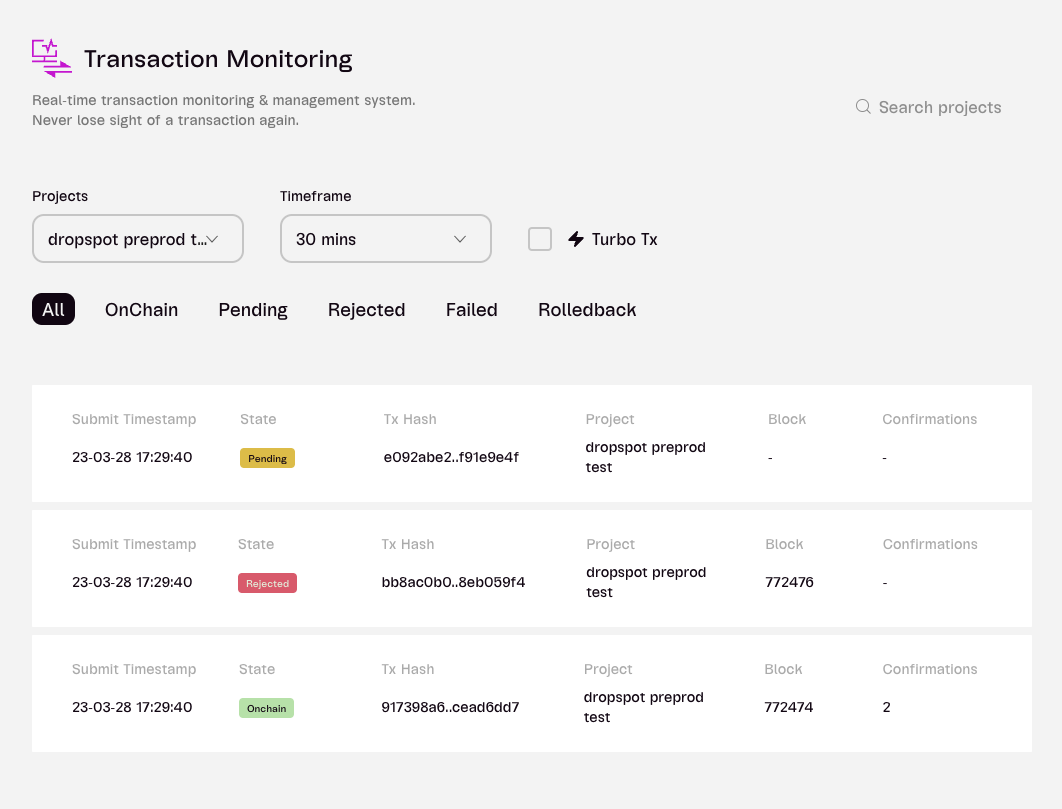
The **Transaction Manager & Monitoring System** enables you to track the entire lifecycle of all transactions submitted via the Maestro API. Stay updated on each transaction’s status—from pending in the mempool, to being accepted on-chain, rejected by a node, or rolled back by the network.
Real-time state change notifications are available via [Webhooks]() created on the platform Transaction page.
### Cardano Example
 ### Supported Transaction States
| Rejected | Rejected by the block producer due to an invalid transaction. |
| :--------------------- | :----------------------------------------------------------------------------------- |
| Pending | Transaction successfully submitted and waiting in a mempool to be accepted on-chain. |
| Failed | Communication to the node has failed. |
| Timedout (Coming Soon) | Transaction is in the mempool but has exceeded its configured time-to-live. |
| Onchain | Transaction is part of a minted block. |
| Rolledback | Transaction has been removed from the chain due to a network rollback. |
### Create a Webhook URL
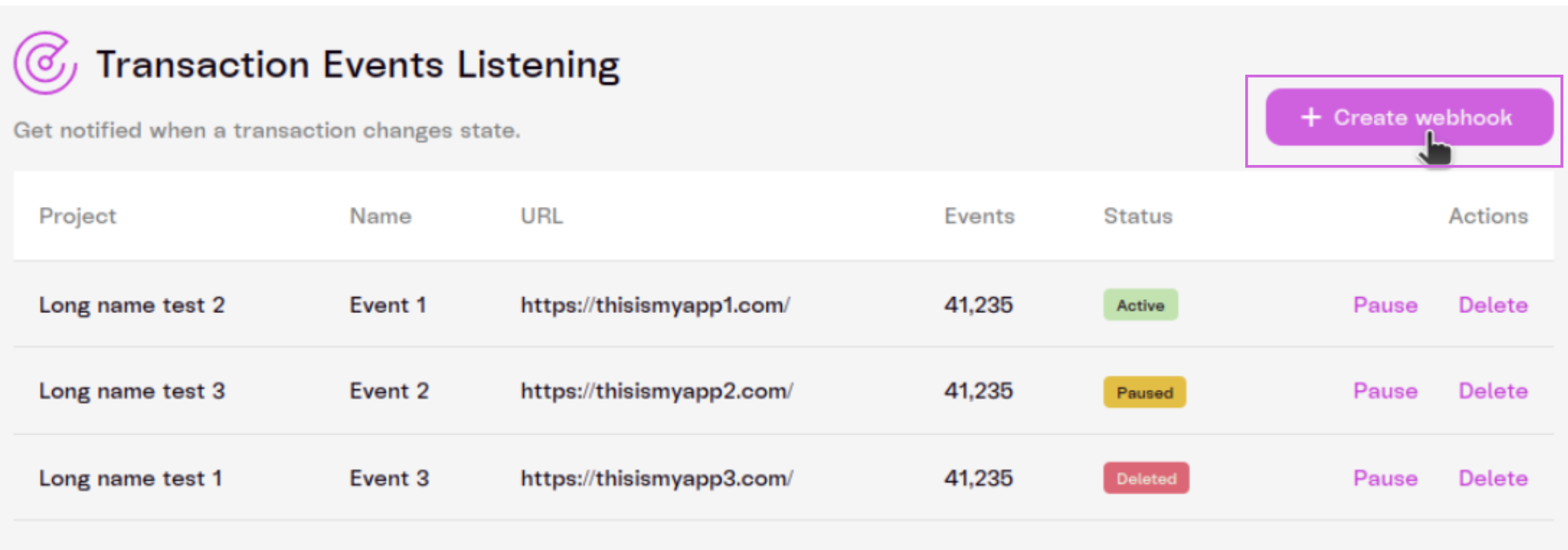
* Go to the [**Transaction**](https://dashboard.gomaestro.org/) page of your dashboard.
* Scroll down to *Transaction Events Listening*
* Click `+ Create webhook`.
### Supported Transaction States
| Rejected | Rejected by the block producer due to an invalid transaction. |
| :--------------------- | :----------------------------------------------------------------------------------- |
| Pending | Transaction successfully submitted and waiting in a mempool to be accepted on-chain. |
| Failed | Communication to the node has failed. |
| Timedout (Coming Soon) | Transaction is in the mempool but has exceeded its configured time-to-live. |
| Onchain | Transaction is part of a minted block. |
| Rolledback | Transaction has been removed from the chain due to a network rollback. |
### Create a Webhook URL
* Go to the [**Transaction**](https://dashboard.gomaestro.org/) page of your dashboard.
* Scroll down to *Transaction Events Listening*
* Click `+ Create webhook`.
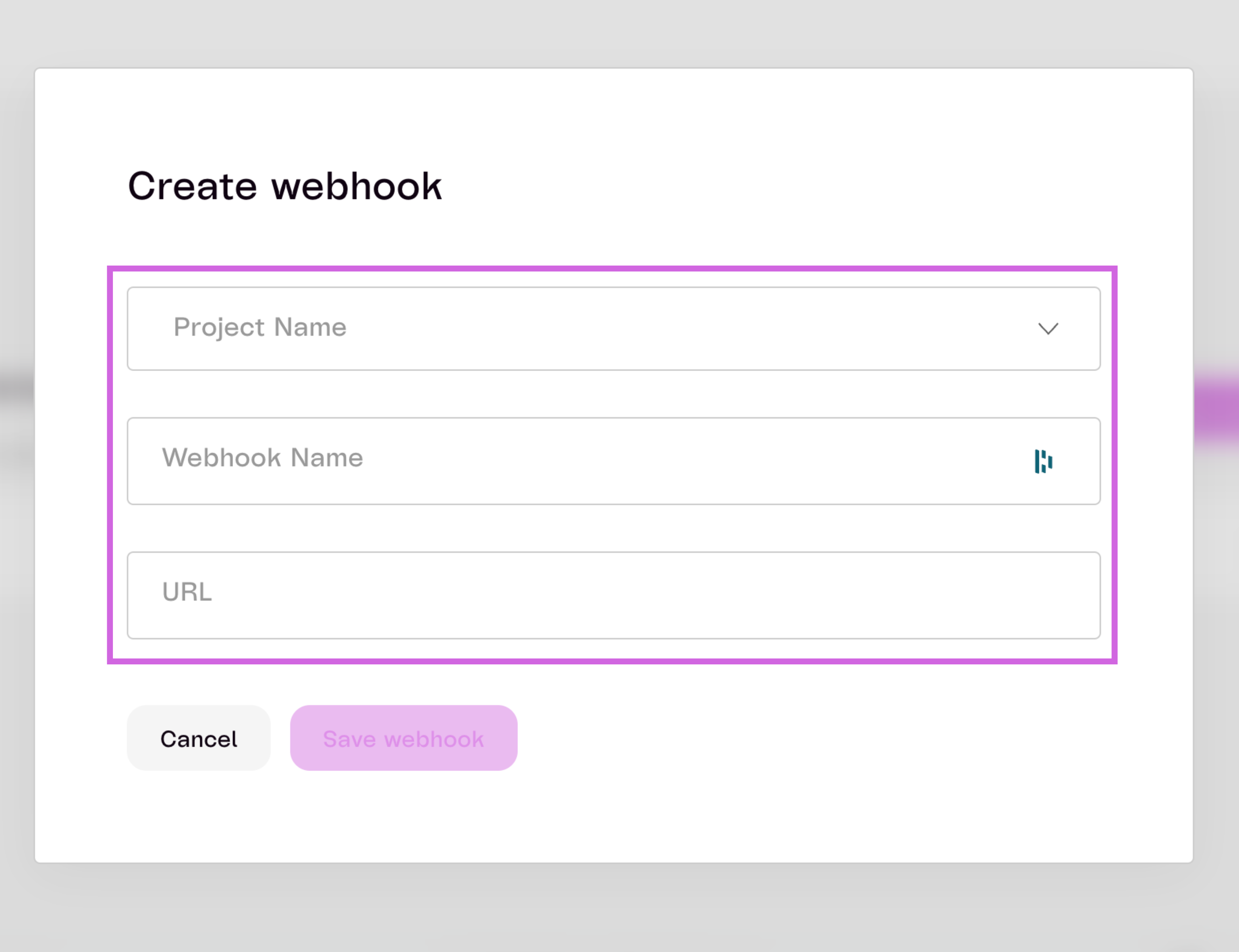
 * Select your project, give your webhook a name, and specify its URL.
 ## Webhook Transaction Notifications
The webhook JSON payloads have the following schema:
```json theme={null}
{
"tx_hash": "84bc33c0336a91f1a42722da8e70b37…",
"state": "onchain",
"timestamp": "2023-01-06T06:37:23+00:00",
"block_number": 8115321,
"metadata": {...}
}
```
| Field | Description |
| :--------------------- | :------------------------------------------------------------------------- |
| tx\_hash | Transaction hash. |
| state | Current state of the transaction. |
| timestamp | UTC timestamp of the transaction state change. |
| block\_number | Block number that your transaction is in if it has been accepted on-chain. |
| metadata (coming soon) | Additional details about your transaction's state. |
## Webhook Transaction Notifications
The webhook JSON payloads have the following schema:
```json theme={null}
{
"tx_hash": "84bc33c0336a91f1a42722da8e70b37…",
"state": "onchain",
"timestamp": "2023-01-06T06:37:23+00:00",
"block_number": 8115321,
"metadata": {...}
}
```
| Field | Description |
| :--------------------- | :------------------------------------------------------------------------- |
| tx\_hash | Transaction hash. |
| state | Current state of the transaction. |
| timestamp | UTC timestamp of the transaction state change. |
| block\_number | Block number that your transaction is in if it has been accepted on-chain. |
| metadata (coming soon) | Additional details about your transaction's state. |