> ## Documentation Index
> Fetch the complete documentation index at: https://docs.gomaestro.org/llms.txt
> Use this file to discover all available pages before exploring further.
# Manage Billing
> Guide to manage billing information, view invoices, update payment methods, and track subscription usage in your Maestro account.
**Manage Payment and Billing**
You can manage your billing information, view invoices, and update payment methods directly through the platform. Follow the instructions below to ensure your payment details are up-to-date and view your billing history.
***
## Prerequisites
Before managing your subscription, ensure you have completed the following:
* [Create an Account](https://dashboard.gomaestro.org) if you don’t already have one
***
## 1. View Billing Information:
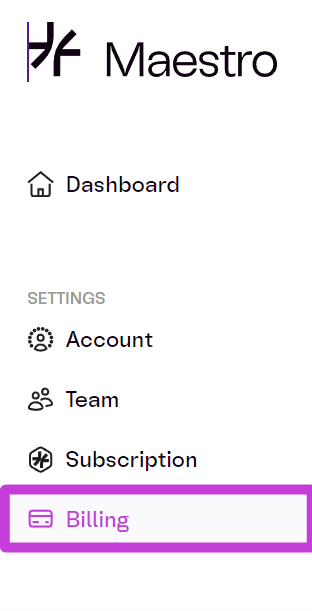
* Navigate to the `Billing` tab from the main dashboard.
 ***
## 2. View Invoice History
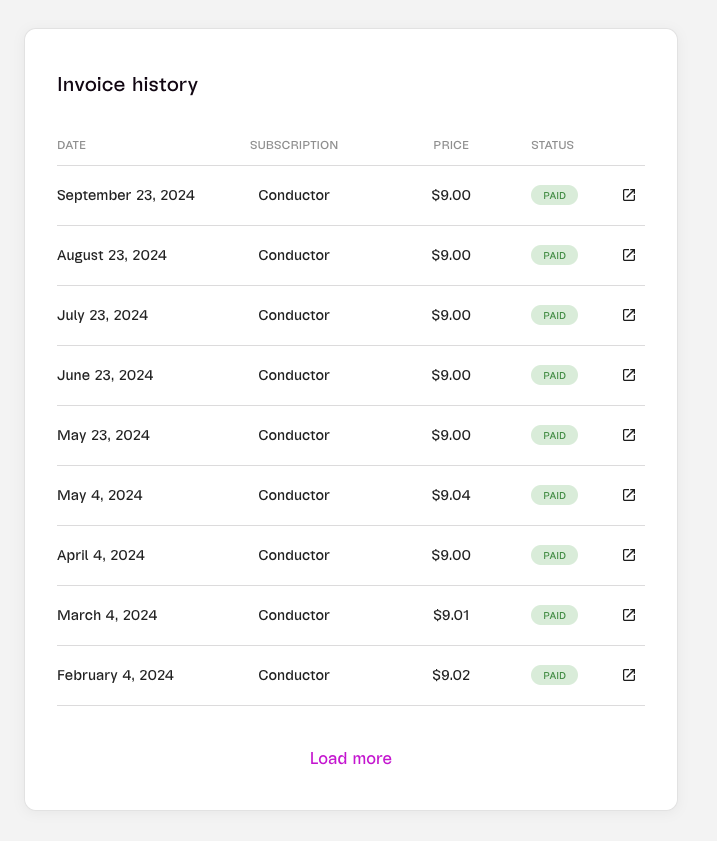
* Here, you can see all your **invoices** and billing history, including detailed payment information.
***
## 2. View Invoice History
* Here, you can see all your **invoices** and billing history, including detailed payment information.
 ***
## 3. Update Credit Card Information:
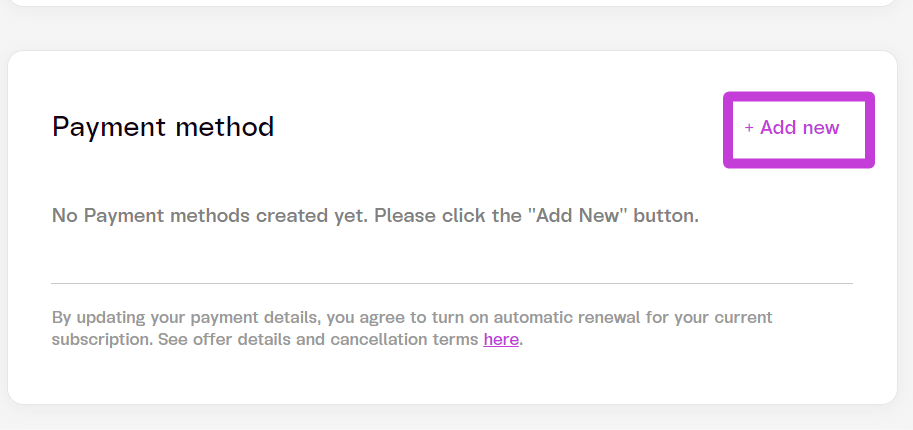
1. Go to `Subscriptions` and select `Overview`.
2. Scroll to the **Payment Method** section.
3. Add or update your **credit card information** as needed.
***
## 3. Update Credit Card Information:
1. Go to `Subscriptions` and select `Overview`.
2. Scroll to the **Payment Method** section.
3. Add or update your **credit card information** as needed.
 ***
## 4. Pay with Stablecoins
You can also pay your subscription with stablecoins by connecting a wallet and setting it as your default payment method.
* **Currently supported:** USDC on Base and Polygon
* **Coming soon:** USDC and USDT on Ethereum
Follow the full setup guide here: [Stablecoin Payments](./stablecoin-payments).
***
## 5. Threshold Billing
**Billing Frequency:** Maestro may charge you on a regular cycle, e.g., monthly, or may charge when your account has accrued a certain amount of charges. Additionally, Maestro reserves the right to bill more frequently if Maestro reasonably determines the customer is at risk of non-payment or is potentially fraudulent.
**Key Points:**
* **Billing thresholds are monetary values that trigger a new bill whenever your account activity exceeds the threshold amount.** In addition to monthly subscription billing, you receive a bill whenever API usage fees, recurring charges, and other outstanding charges exceed your account's threshold.
* **Monthly subscription fees are included in your running total but not in threshold bills.** This ensures that your regular subscription fees are only charged on your scheduled monthly billing date, while usage-based charges trigger threshold billing.
* **You can be charged multiple times in the same month if your account repeatedly reaches the billing threshold.** The amount charged could exceed the payment threshold if your account accrues costs very quickly between billing cycles.
* If you have no API usage fees or other charges during a billing cycle, your threshold amount does not display and you are only billed on your regular monthly date.
If a payment fails, the platform will attempt to charge your default payment method up to 3 times within two weeks. If all attempts are unsuccessful:
* **Your account will be suspended.**
* **All associated project keys will be deleted.**
For any issues with billing, please reach out to **Support****.**
***
## 4. Pay with Stablecoins
You can also pay your subscription with stablecoins by connecting a wallet and setting it as your default payment method.
* **Currently supported:** USDC on Base and Polygon
* **Coming soon:** USDC and USDT on Ethereum
Follow the full setup guide here: [Stablecoin Payments](./stablecoin-payments).
***
## 5. Threshold Billing
**Billing Frequency:** Maestro may charge you on a regular cycle, e.g., monthly, or may charge when your account has accrued a certain amount of charges. Additionally, Maestro reserves the right to bill more frequently if Maestro reasonably determines the customer is at risk of non-payment or is potentially fraudulent.
**Key Points:**
* **Billing thresholds are monetary values that trigger a new bill whenever your account activity exceeds the threshold amount.** In addition to monthly subscription billing, you receive a bill whenever API usage fees, recurring charges, and other outstanding charges exceed your account's threshold.
* **Monthly subscription fees are included in your running total but not in threshold bills.** This ensures that your regular subscription fees are only charged on your scheduled monthly billing date, while usage-based charges trigger threshold billing.
* **You can be charged multiple times in the same month if your account repeatedly reaches the billing threshold.** The amount charged could exceed the payment threshold if your account accrues costs very quickly between billing cycles.
* If you have no API usage fees or other charges during a billing cycle, your threshold amount does not display and you are only billed on your regular monthly date.
If a payment fails, the platform will attempt to charge your default payment method up to 3 times within two weeks. If all attempts are unsuccessful:
* **Your account will be suspended.**
* **All associated project keys will be deleted.**
For any issues with billing, please reach out to **Support****.**